Each website visitor provides different value to your business. Some will never buy; they stumbled onto your website by accident or were never part of your market. Others are very valuable, like new customers ready to make repeat purchases. In advertising, you need to control costs from each audience to see a positive return-on-investment. Bid management is paramount to doing this in Google Ads.
A Google Ad receives clicks when people see it in a search. To show your ads, you participate in Google’s ad auction. You set a CPC or CPA bid which, combined with quality score, forms a measure called Ad Rank. This determines your ad’s placement in a search. Position 1 – 10, or page 1 of Google, see the vast majority of clicks. You won’t pay your bid, instead just more than the second highest bid. Bid is a huge factor in your ad rank, and managing bids is an important step in beating the competition.
This course will focus on manual bidding with what’s called enhanced CPC enabled, as you likely setup, so each keyword has a bid. You can easily adjust what you see to CPA bidding, where bids are set on the ad group level and Google controls the rest. Future lessons will discuss automated bidding in detail. Manual bidding takes more time, but can combine control and automation for small businesses that don’t have a bottomless budget. Many professionals prefer manual bidding over automated— it works.
Broadly, bid management is about getting website traffic at a profit. High bids gain traffic and sales but hurt ROI. Low bids result in lower placement, or sometimes no placement, but higher ROI. It’s your job to find the balance. On Google Ads, given competition and ever-changing demands, this will require regular adjustments.
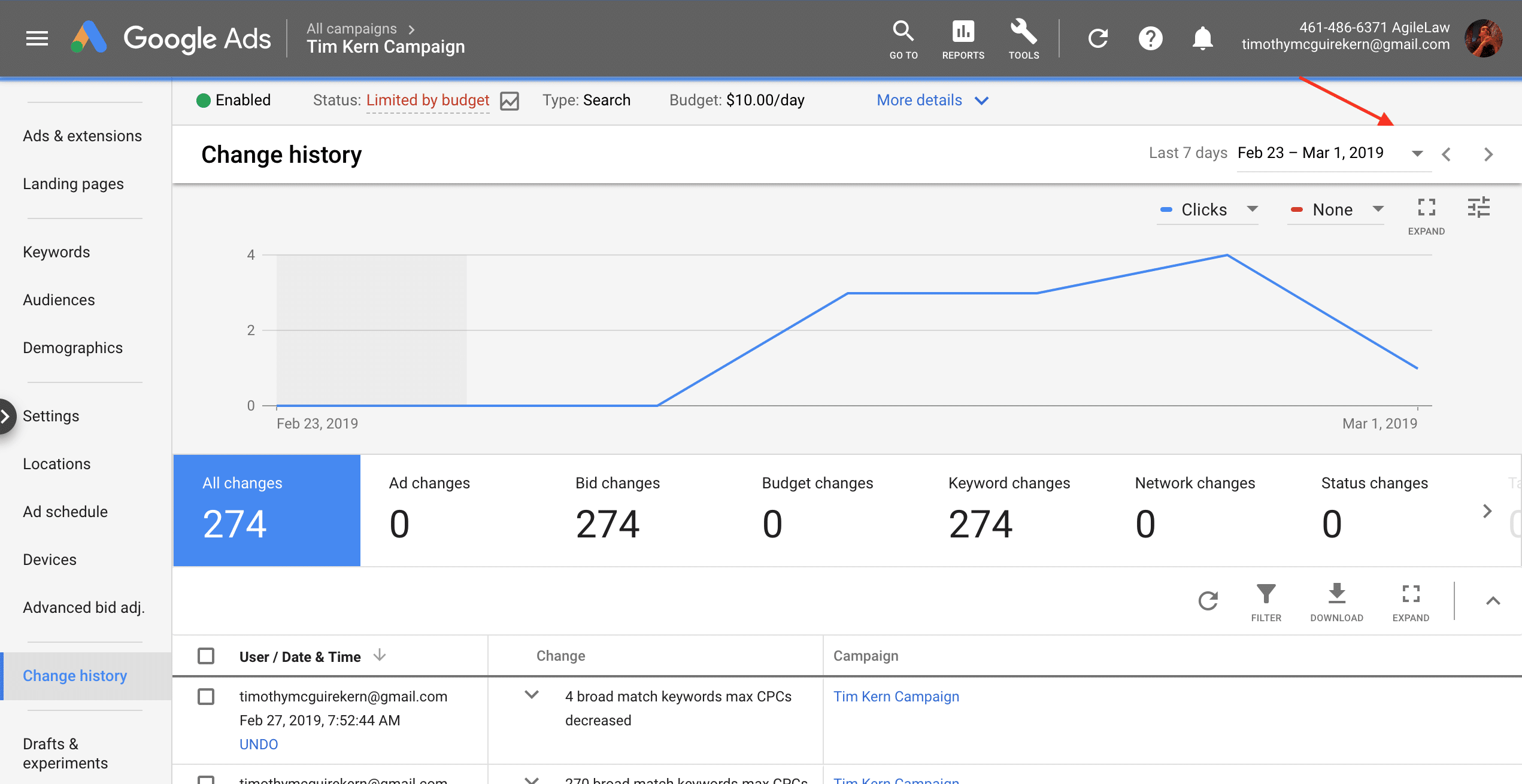
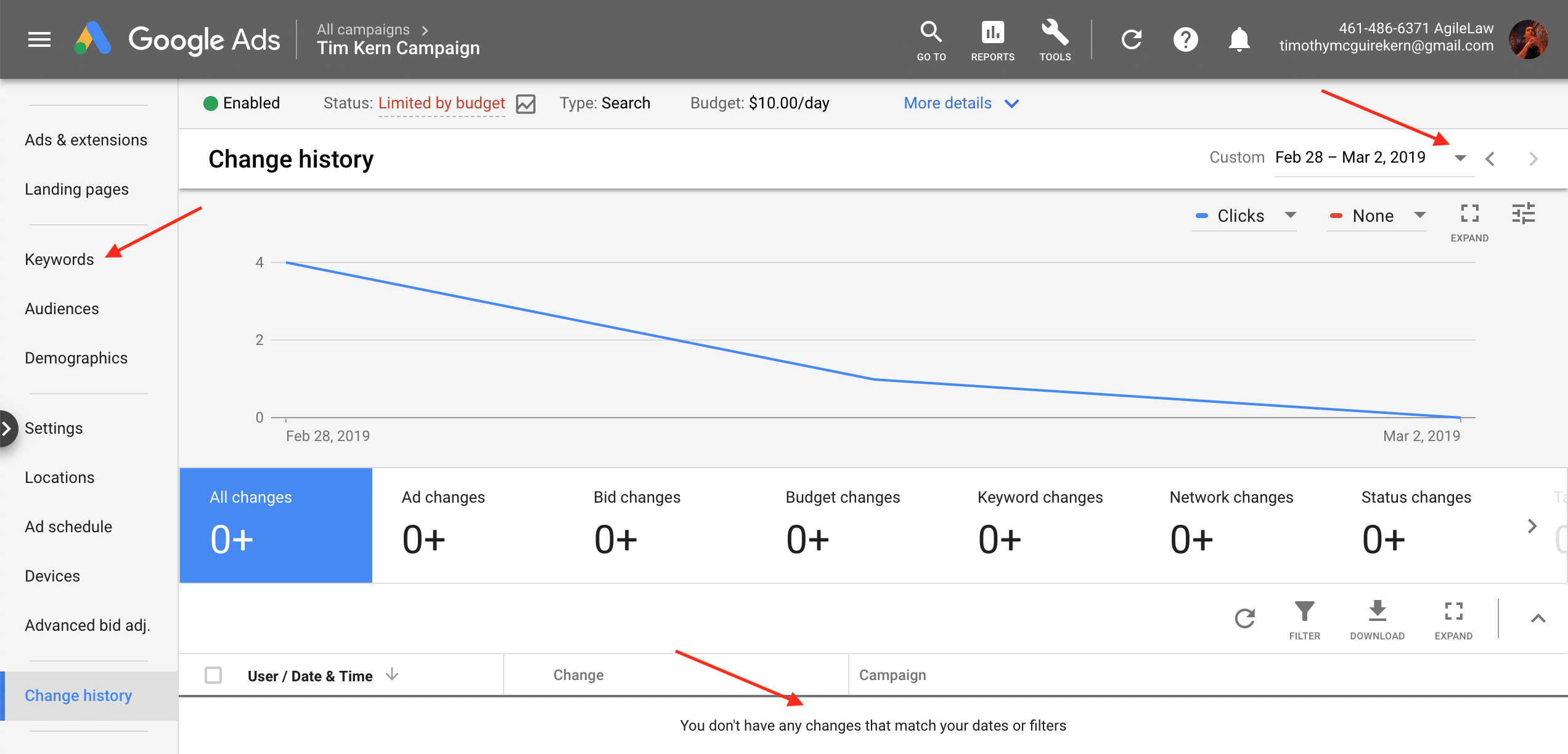
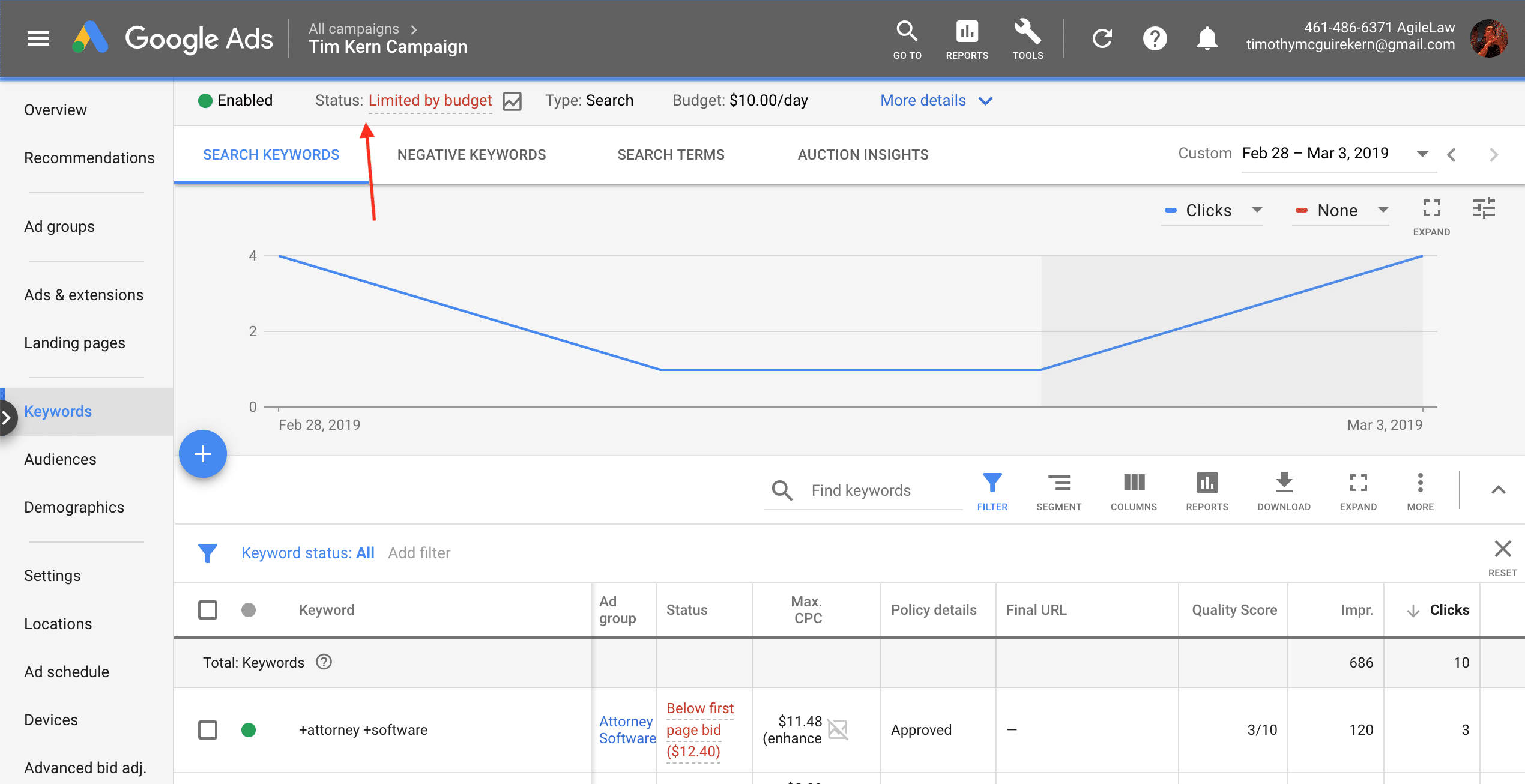
To start, enter your campaign and look at change history. Confirm the date of the last major change; bid adjustments, major ad refreshes, demographic or location alterations, new ad schedules, etc. Adjust your date range to start the day after your last change, and click into Keywords in the left column. Look in the table for total cost and divide it by the number of days in your date range. If you’re spending less than 85% of daily budget, consider increasing bids (unless search absolute top impression share is well over 50%— instead discover new keywords since you’re already at the top of searches you’re targeting). If your campaign is spending more than 85%, it actually may mean you can lower bids to fit more clicks in a fixed daily budget. Quickly look under Status; Limited by budget indicates this. When Eligible complete bid adjustments accepting you may need to revert changes if spend dips significantly. Spend your full budget, but consider this balancing act.
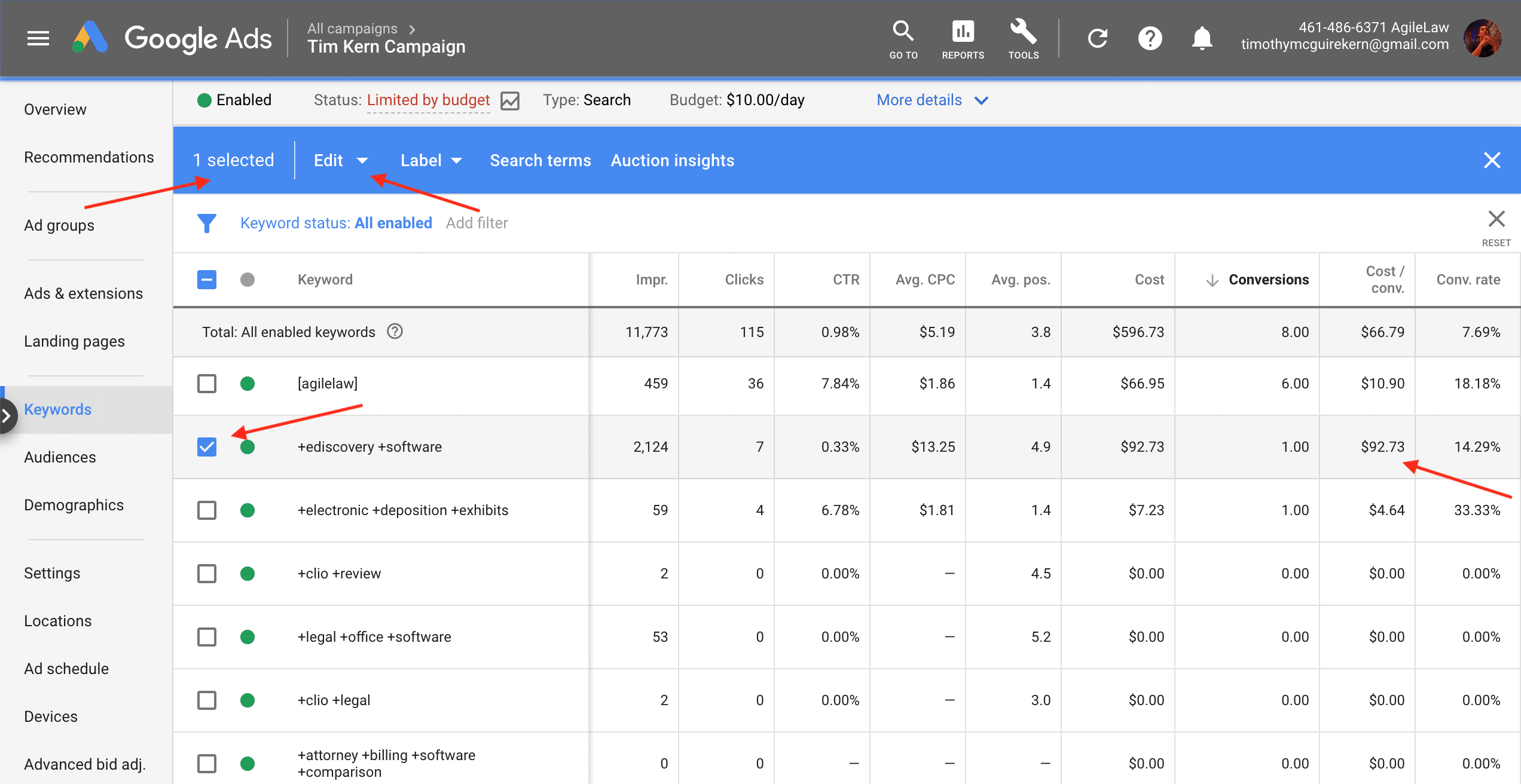
To choose keywords, evaluate CPA (Cost / Conv. column) or Avg. CPC for each by sorting the table in Google Ads for Clicks. Select all with clicks if reducing bids. For increases select all with a conversion, all with a click, or all active keywords depending on if you want to increase conversions, get traffic on test keywords, or grow traffic everywhere. Toggle dates between lifetime, last 30 day, last 14 day, last 7 day, and all after your last change to see if each keyword’s CPA, cost (if Conversions = 0), &/or Avg. CPC is above or below goal. If below goal, especially after many conversions/clicks (2+) &/or in recent date ranges, remove that keyword from reductions— it’s likely to drive ROI and reducing bids will decrease ad rank. The reverse is also true— for keywords with CPA above goal, especially after multiple conversions/clicks &/or viewing long term (lifetime) results, decline bid increases for these as they will only drive CPAs up. To reiterate, don’t increase bids on keywords with costs over goal CPA for lifetime unless recent conversions are cheap, but consider decreasing bids on keywords over goal CPA since the last change unless they’ve driven many cheap conversions over time. Think closely about which keywords bring ROI and which don’t. Deselect keywords as needed, and click the “Edit” drop-down in the blue bar that appeared when you selected your keywords.
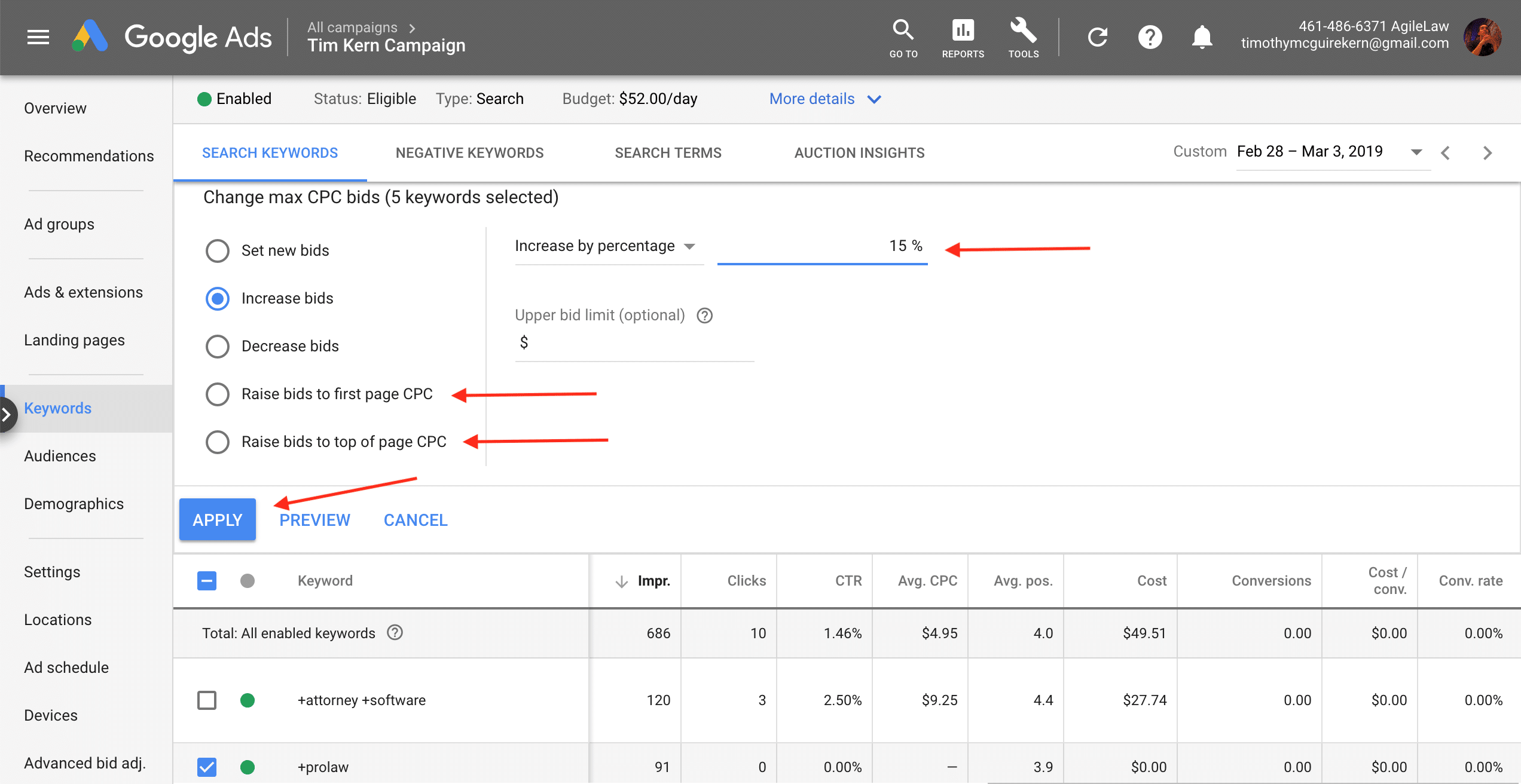
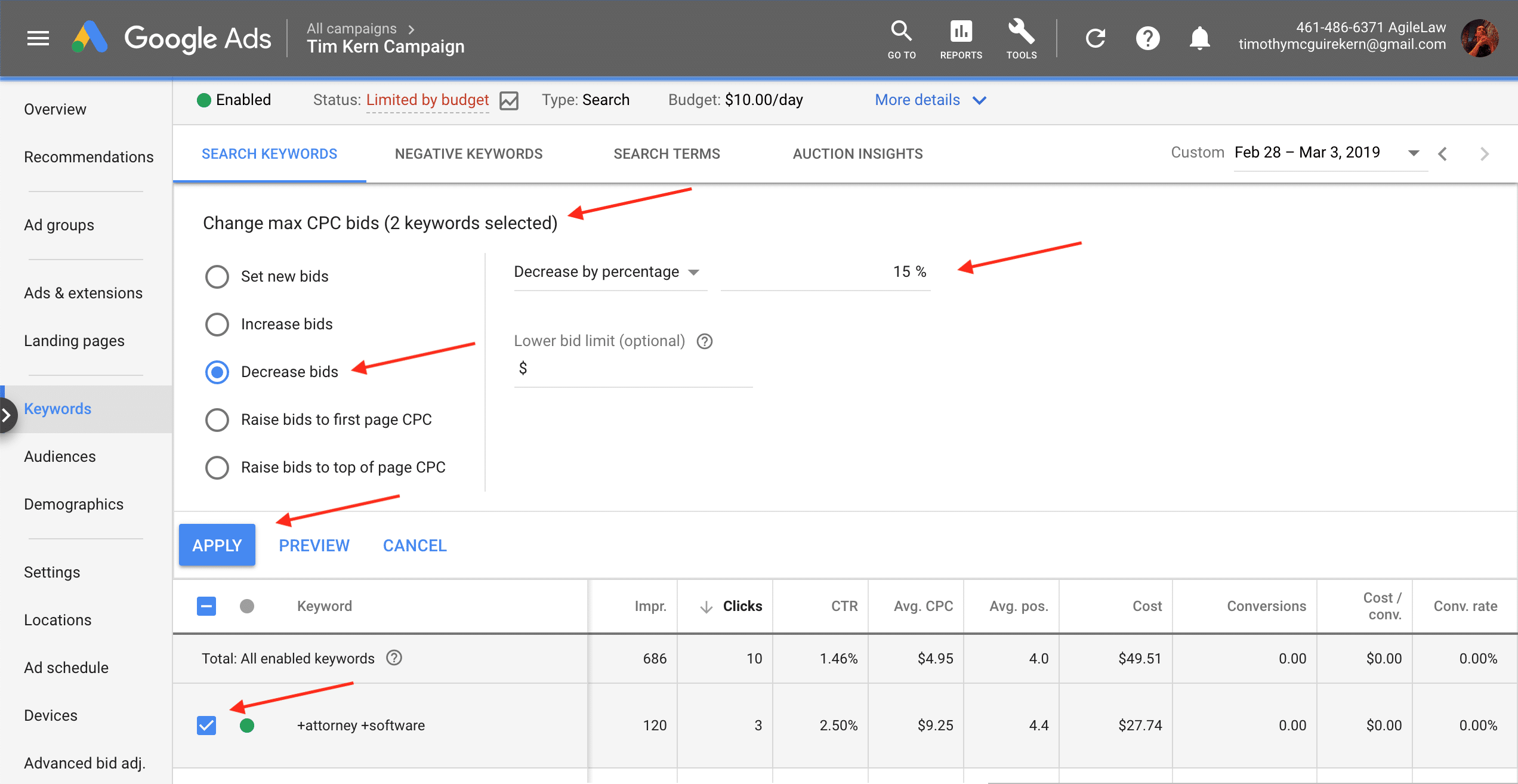
From here, decide how much to alter bids. For most, apply 10 – 15%— meaningful, but nothing drastic. If you need to really increase or decrease costs, under scenarios in which your campaign has received no clicks for several days or CPC is way too high, break this rule. Google offers options like Raise bids to first page CPC or Raise bids to top of page CPC… if you want to increase cost. If you want to decrease apply your own percentage (usually under 50%). Click Apply to finish. Remember, changes can be reverted under change history if they ever hurt results.
Always look at conversion data because conversions drive sales. Still, sometimes you need to adjust campaigns with 0 conversions for a period. Here, change what you’re observing from CPA to CPC. Look at Avg. CPC (campaign, ad group, or keyword level), and compare to goal CPC as calculated in the CPC calculation tool below or from goal setting. As CPC since last change is under goal, increase bids to increase conversions. As CPC is too high, decrease bids to maintain ROI. This is less precise than using CPAs, but is the best option to adjust bids before seeing those results.
While challenging, bid management is required to drive traffic with ROI. The University of Marketing team is here to help as you have questions along the way.
Full Instructions
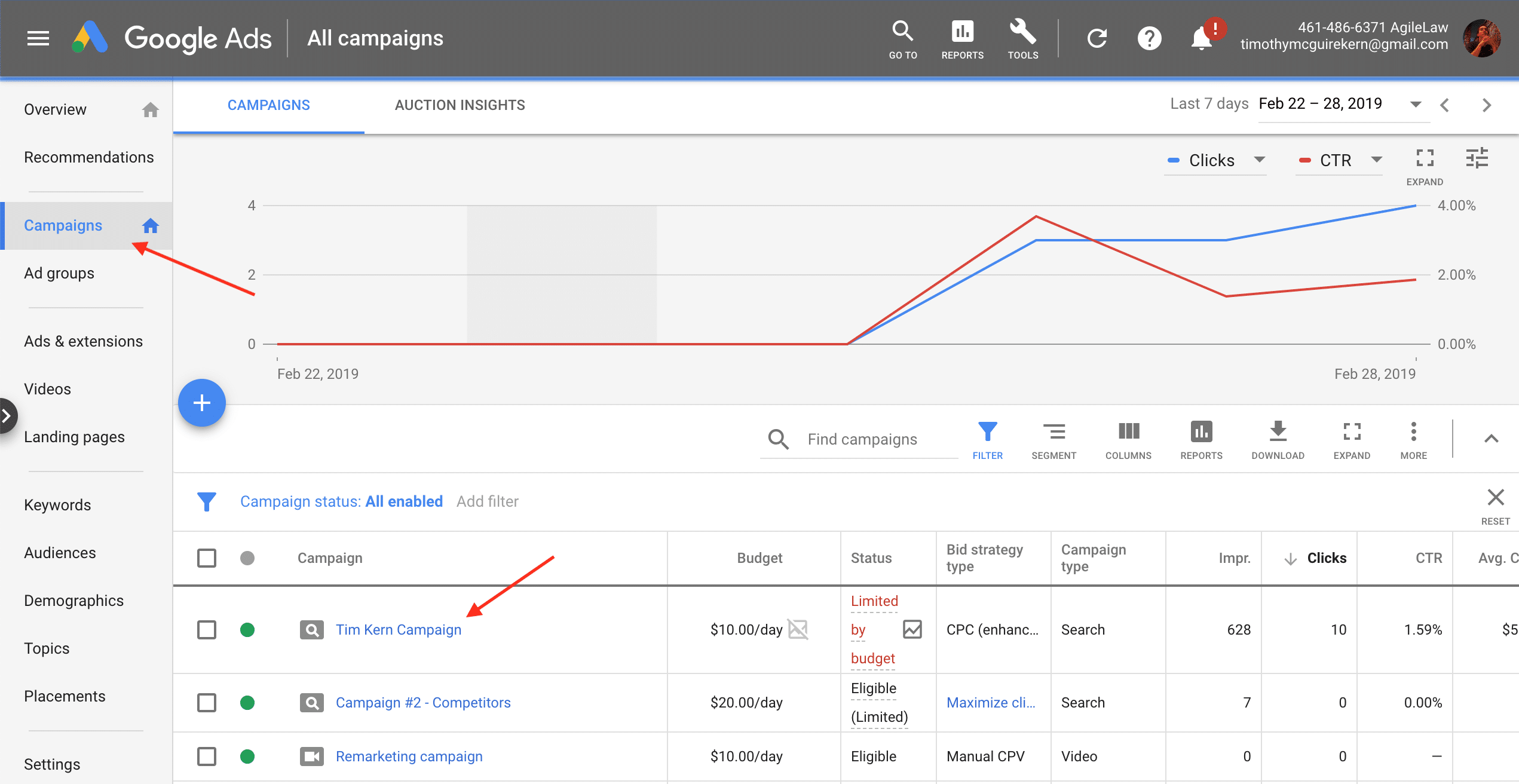
1) Login to Google Ads, and click into your campaign
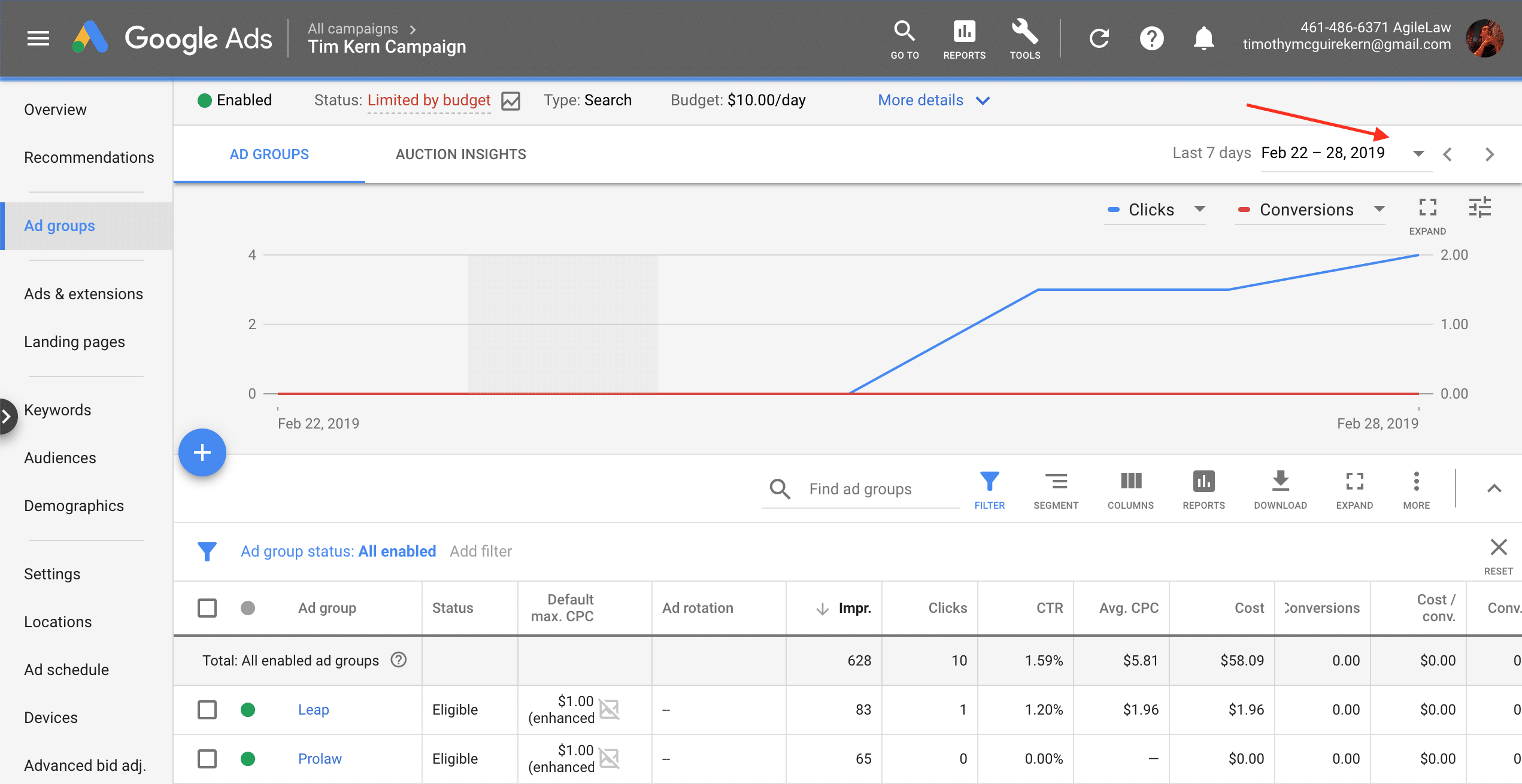
2) Select All time as your date
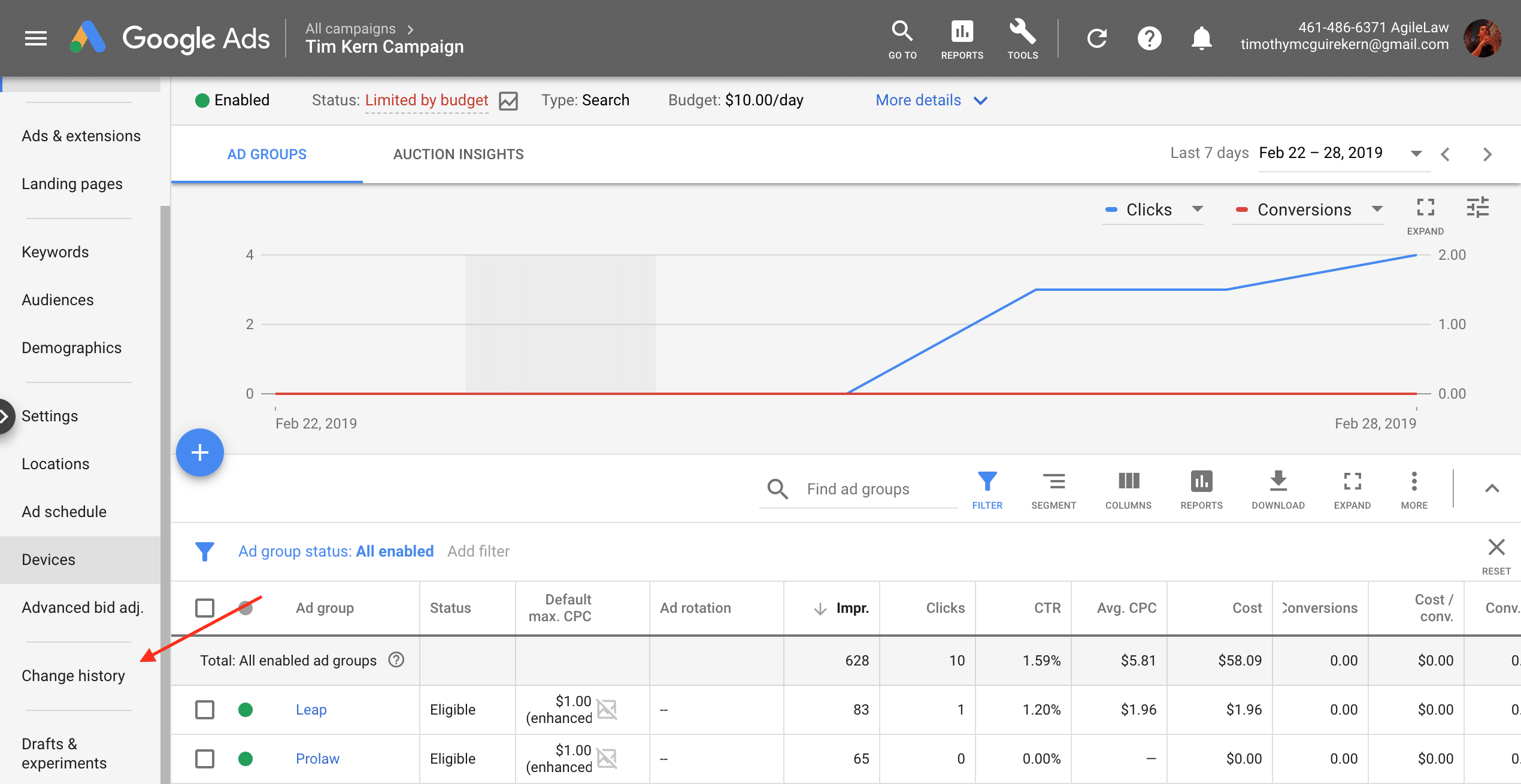
3) In the left column, click Change History
4) Find the date of your last change, and select all days after as your date range. You should then see no changes in the change history
5) Click Keywords in the left column
6) Look at the status in the top bar, just below the Google Ads header. If status is Limited by budget, or Eligible with average daily cost over 85% of Budget, you might grow traffic by decreasing bids. If status is Eligible, and average daily cost is less than 85% of goal, you’ll usually increase traffic by increasing bids
7a) Follow this process to decrease bids:
i): Select all keywords with clicks and decrease bids by 10 – 15% if CPA is above goal, Cost is above goal CPA (when Conversions = 0), or Avg. CPC is above goal CPC. Sort the table by Clicks and use the checkboxes in the far left column to do this
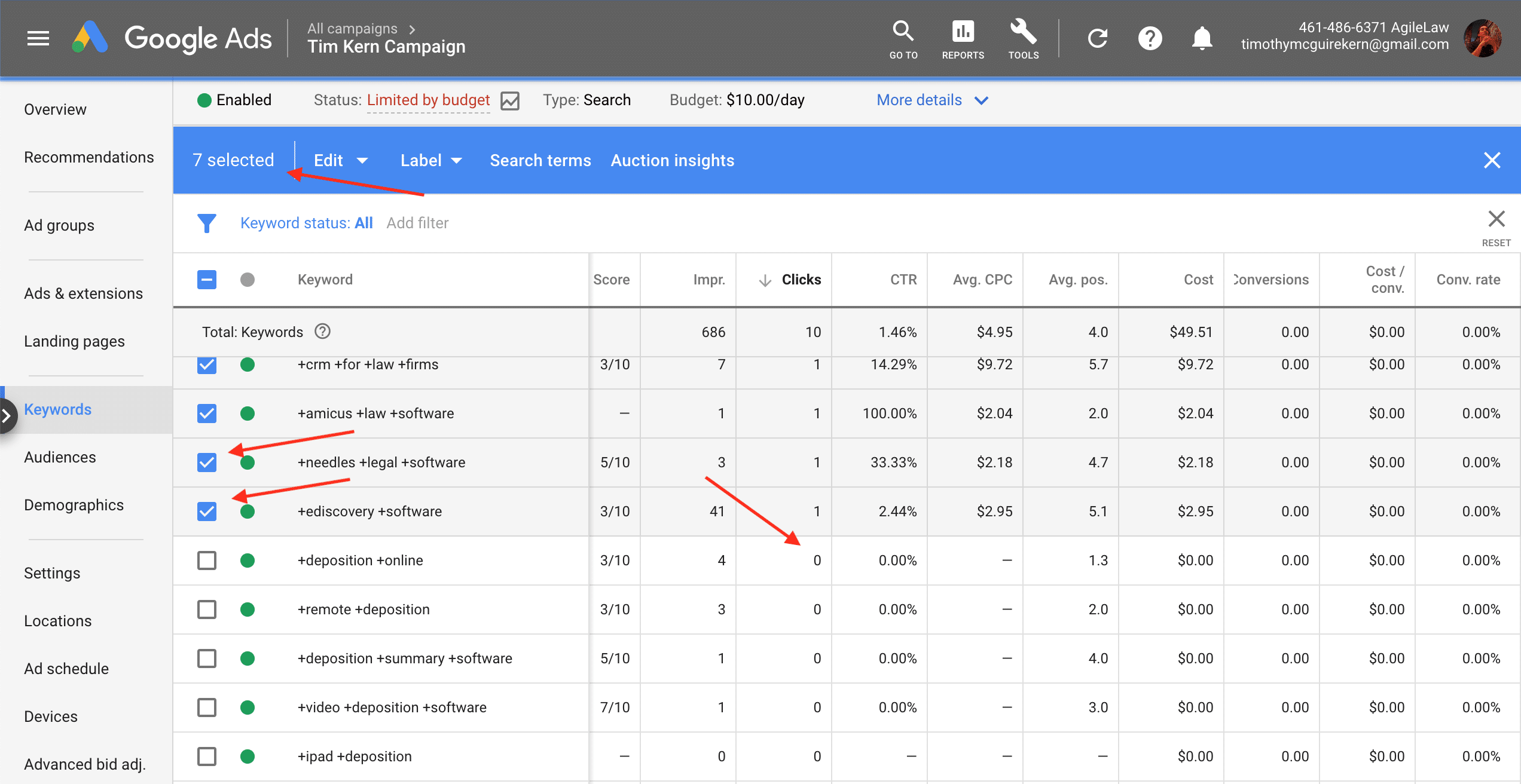
Toggle dates: All Time, Last 30 days, Last 14 days, Last 7 days, and the range after your last change. Sort the table by Conversions and view results. Consider deselecting keywords with a CPA, Cost (when Conversions = 0), or Avg. CPC below goal within a relevant date. If a keyword has low CPAs recently, or has many conversions (2+) with a low CPA, deselecting should maintain volume
Click the Edit dropdown that appears, select Change max. CPC bids, select Decrease Bids, set Decrease by Percentage in the dropdown field, enter a percentage (usually 10 – 15%), and click Apply
7b) Follow this process to increase bids:
i) Select all and increase bids by 10 – 15% if Cost / Conv. is under goal, clicks > 0, or keywords are merely active to grow conversions, get first conversions to test terms, or generally grow clicks. To do this, sort by the Clicks or Impr. column and select all that apply
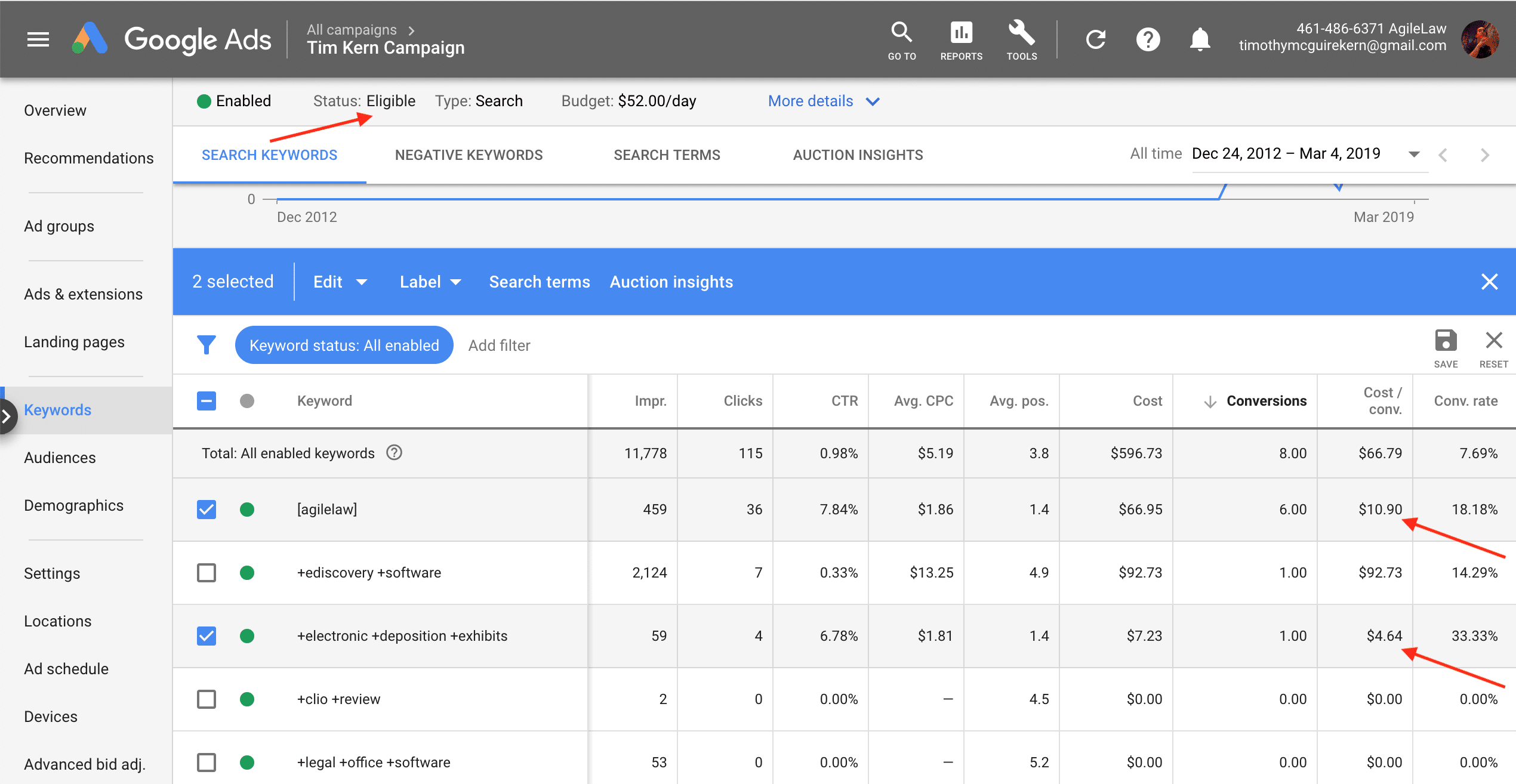
Toggle dates: All Time, Last 30 days, Last 14 days, Last 7 days, and the date range after your last change. Consider deselecting keywords with a CPA, Cost (if Conversions = 0), or Avg. CPC above goal. Prioritize longterm (Lifetime) results &/or many (2+) conversions here. You don’t want to increase bids on keywords that likely won’t yield a profit.
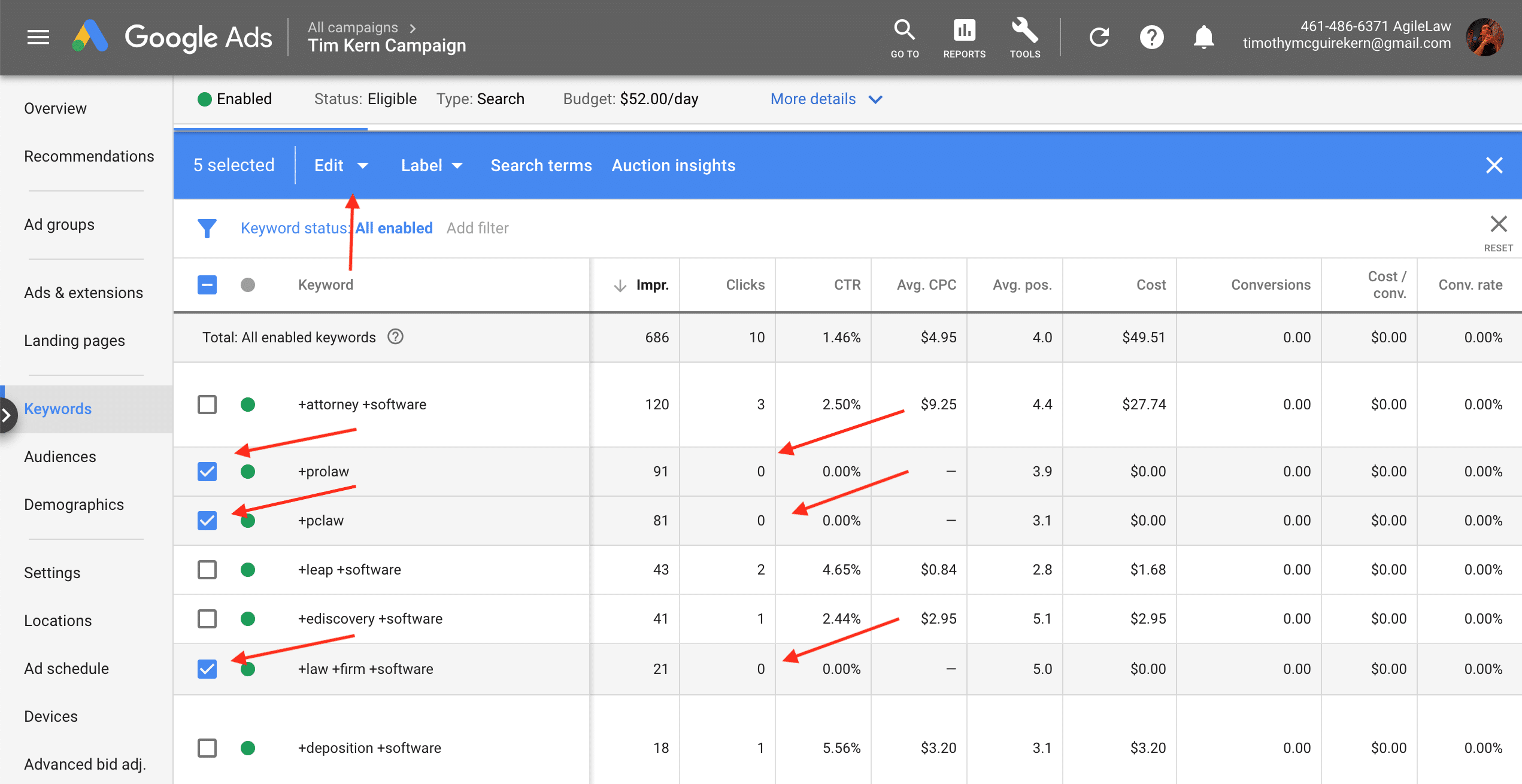
Click Edit, Change max. CPC bids, Increase Bids, Increase by Percentage, enter a percentage (normally 10 – 15%), and click Apply