Maintenance- Discover Keywords
Keywords are the best way to advertise on Google’s search engine. New keywords can improve ROI by lowering CPAs and growing conversions. To achieve those goals, follow a keyword discovery process.
There are four key methods to this. First, look through the exact search terms used by people who clicked your ads. Second, use the keyword ideas Google provides in a campaign. Third, use the Google Keyword Planner. The fourth is optional— use 3rd party applications like Spyfu or Wordtracker.
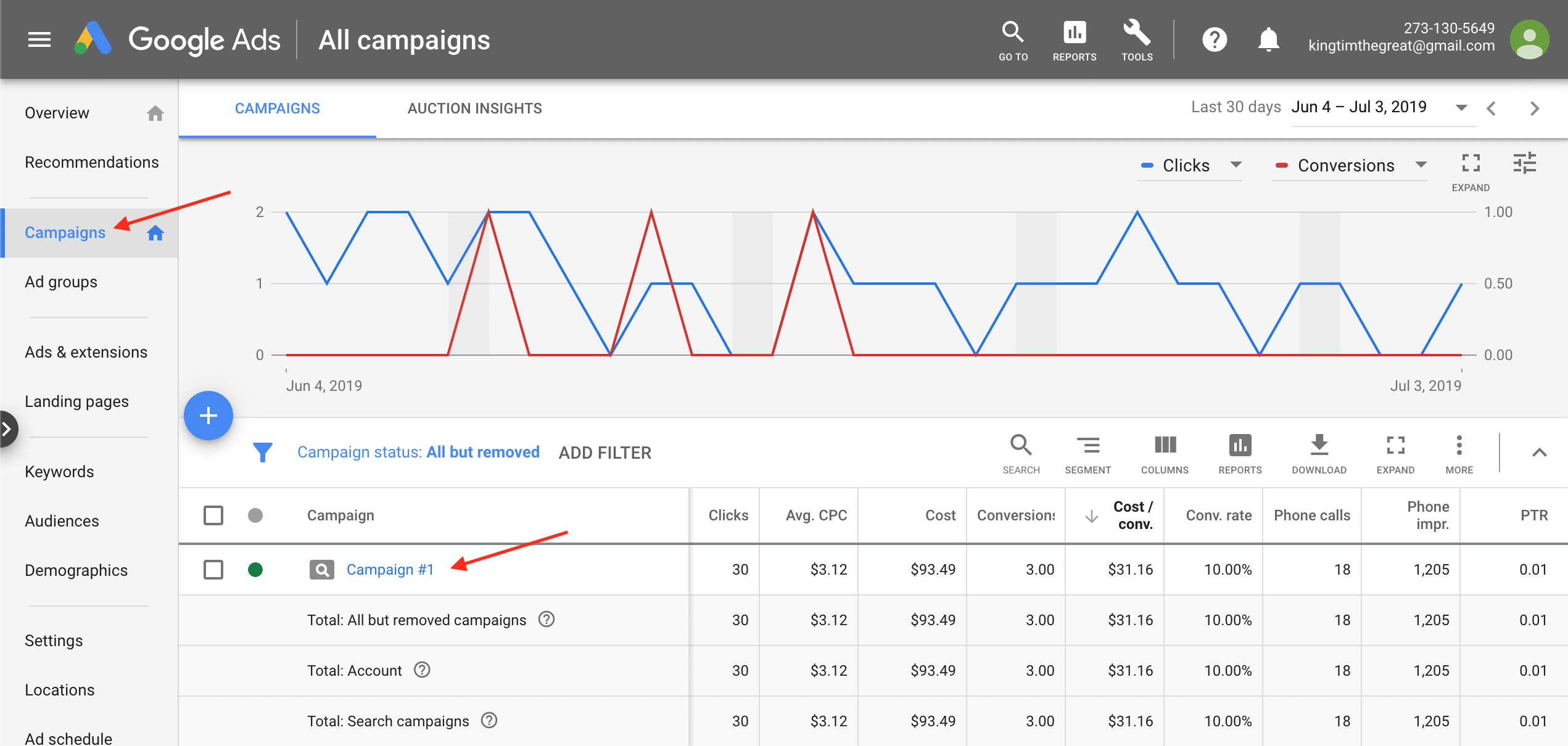
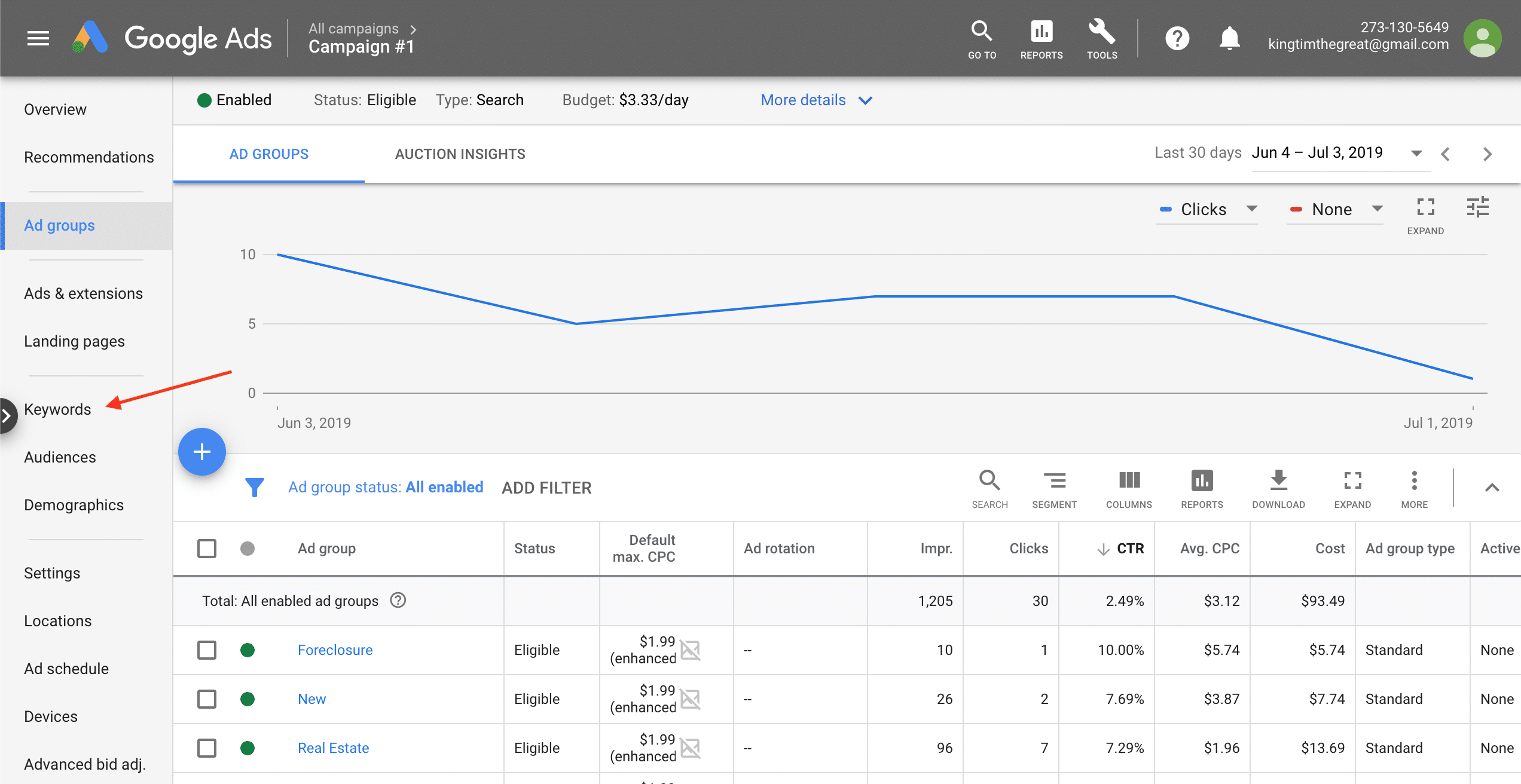
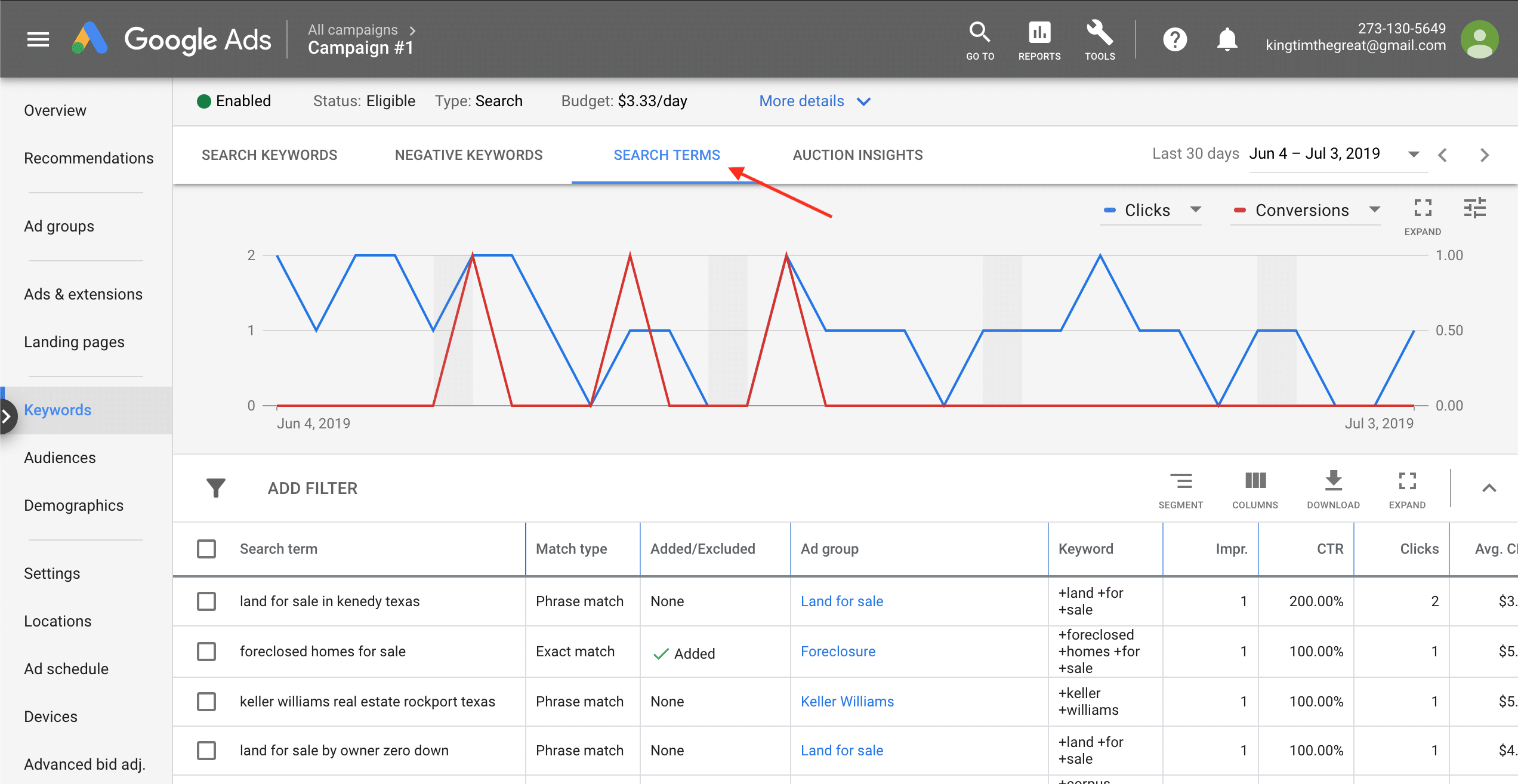
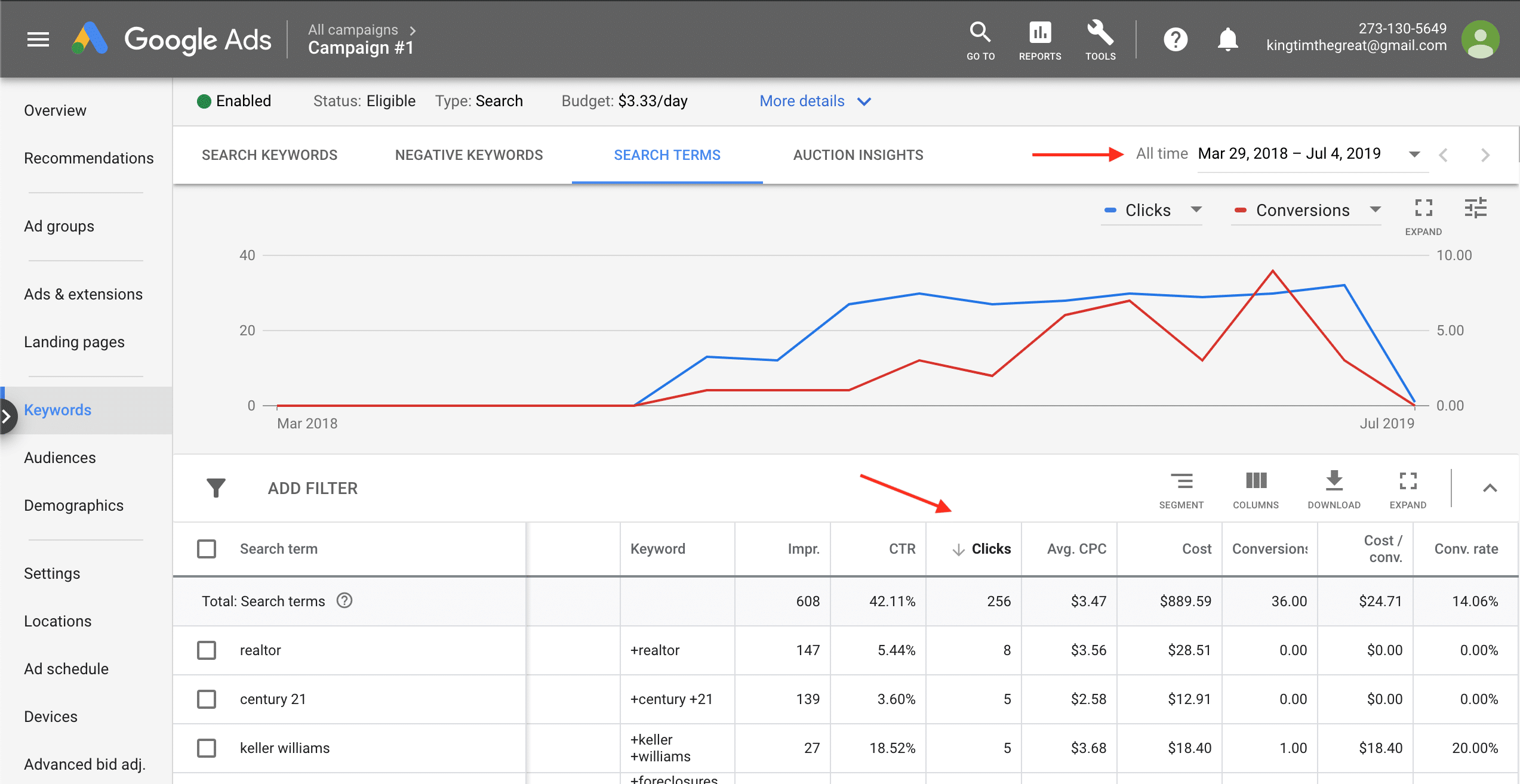
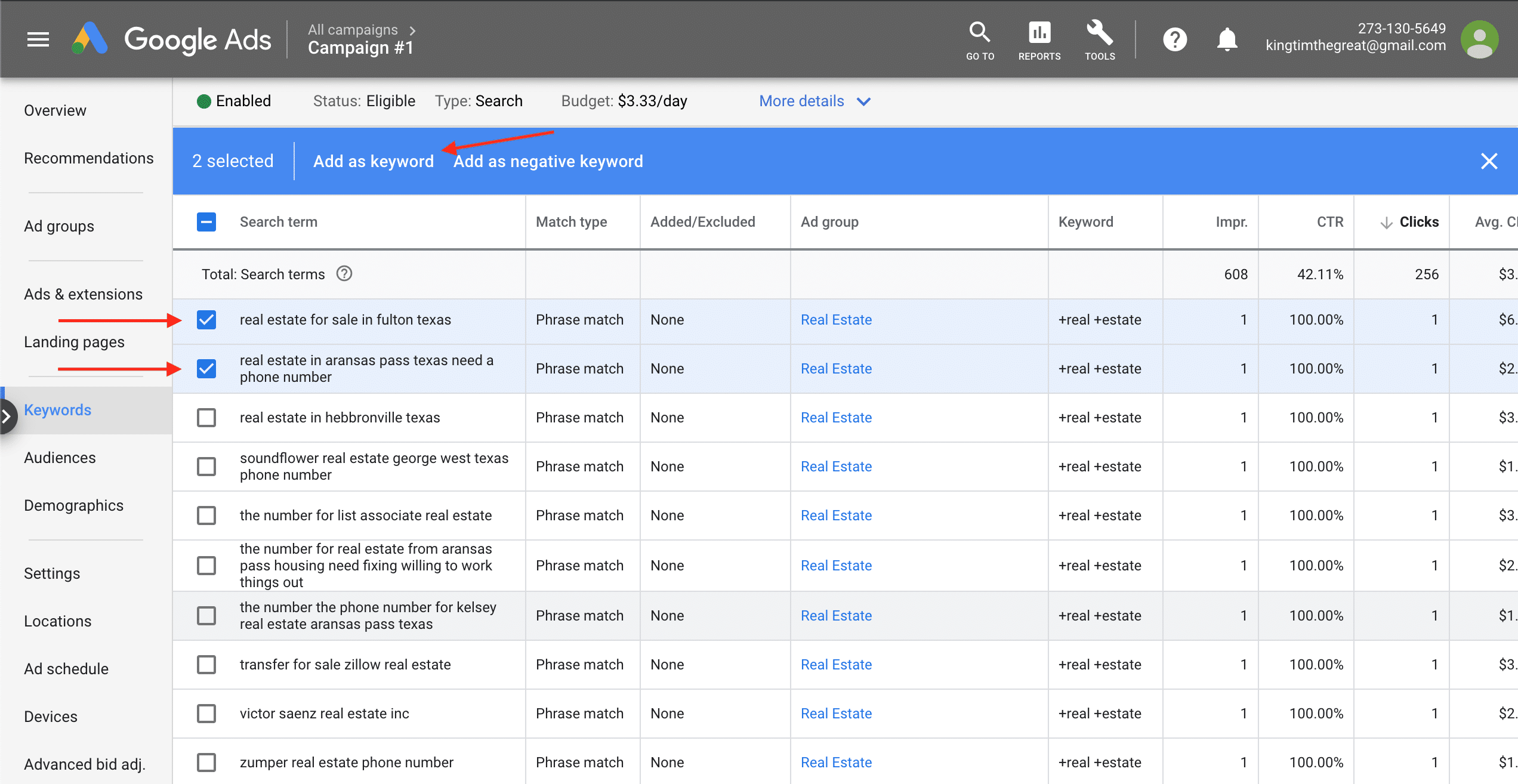
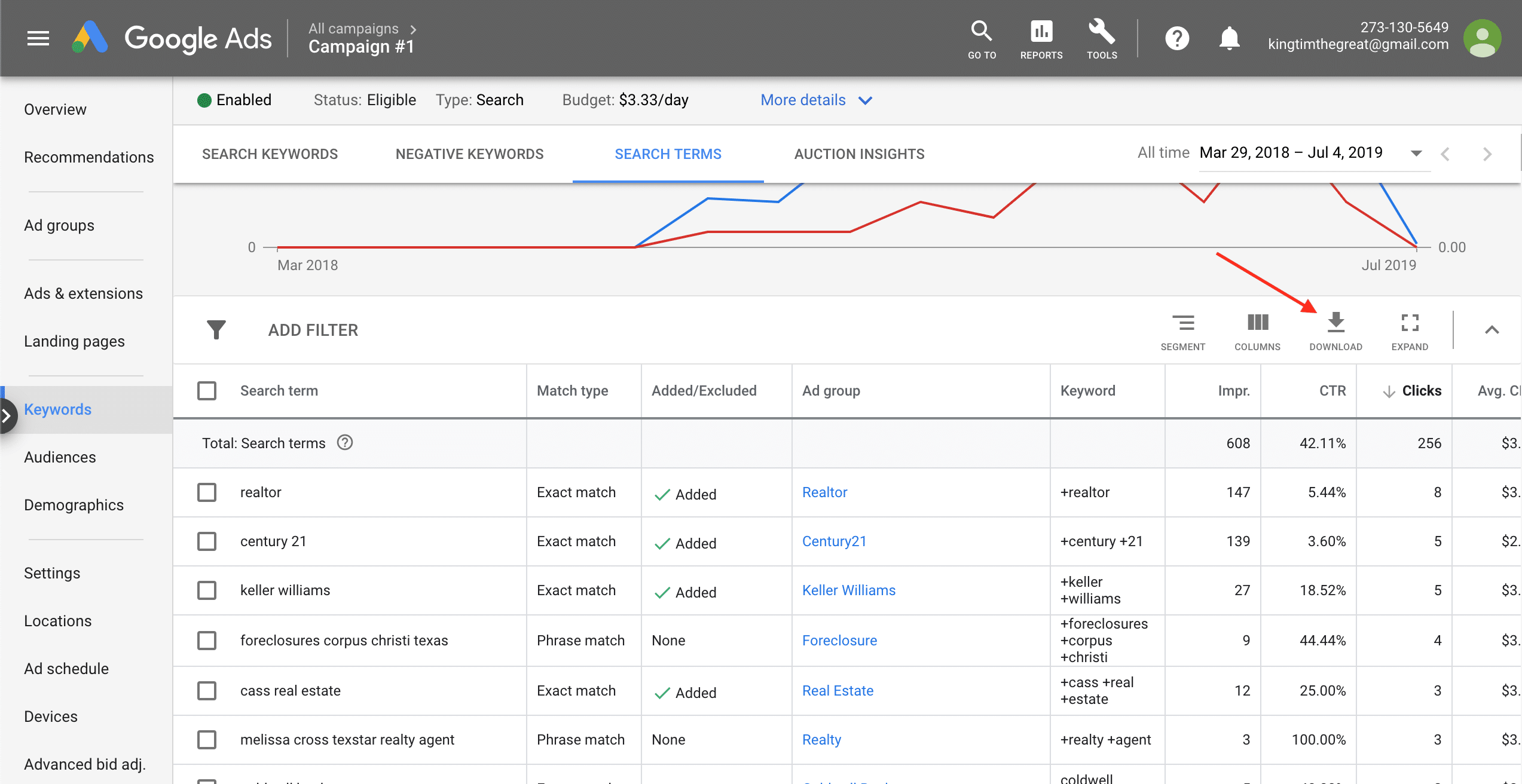
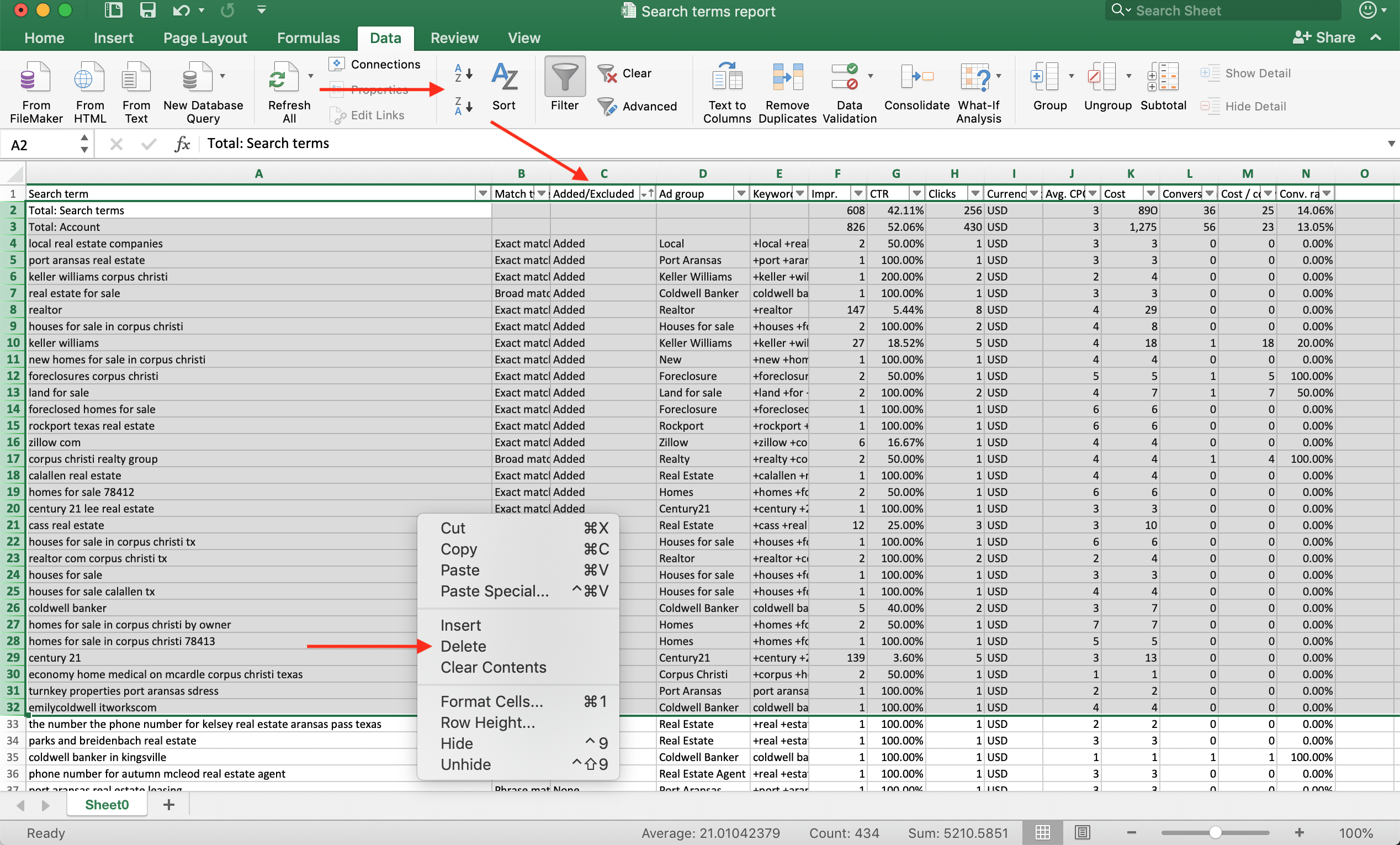
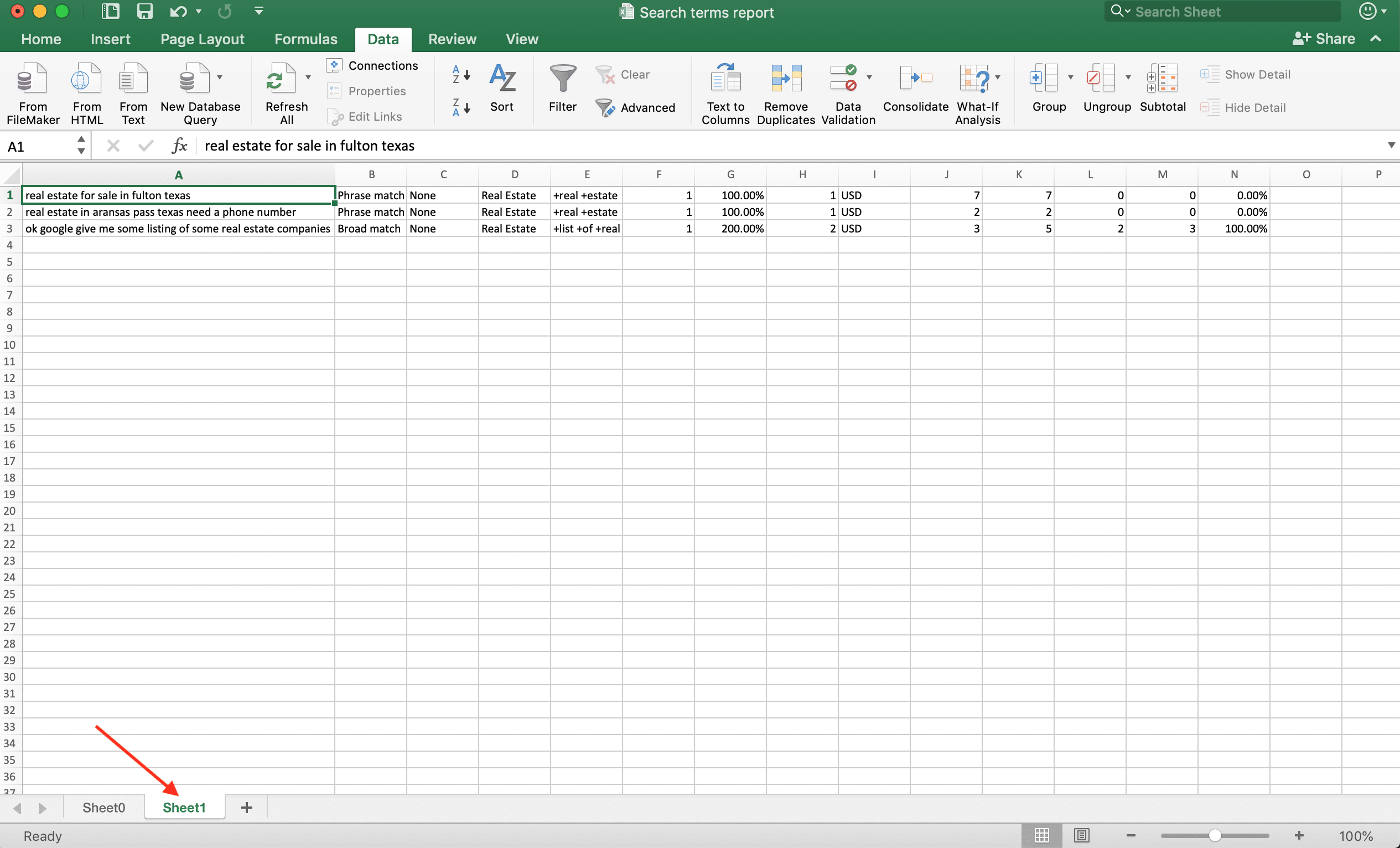
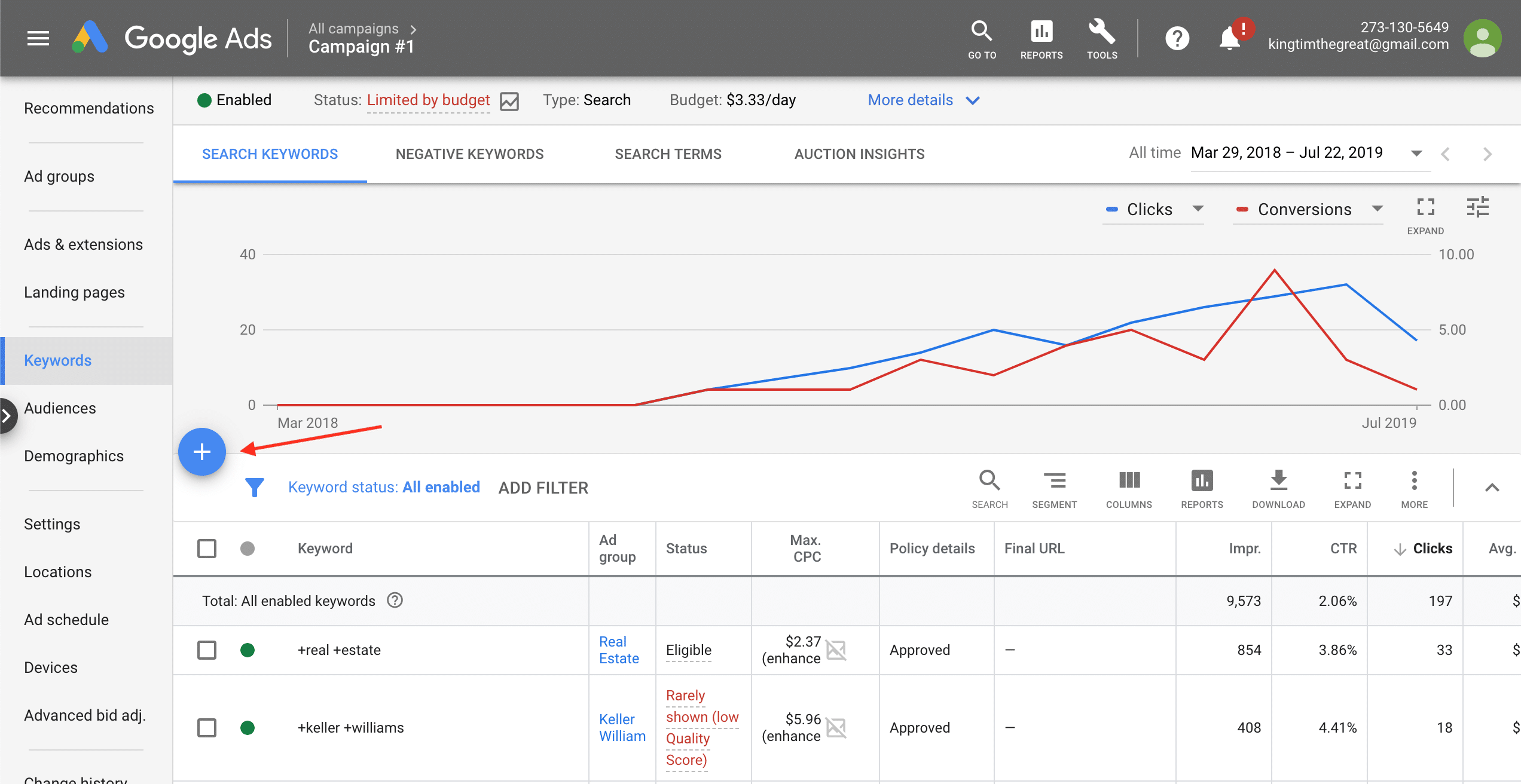
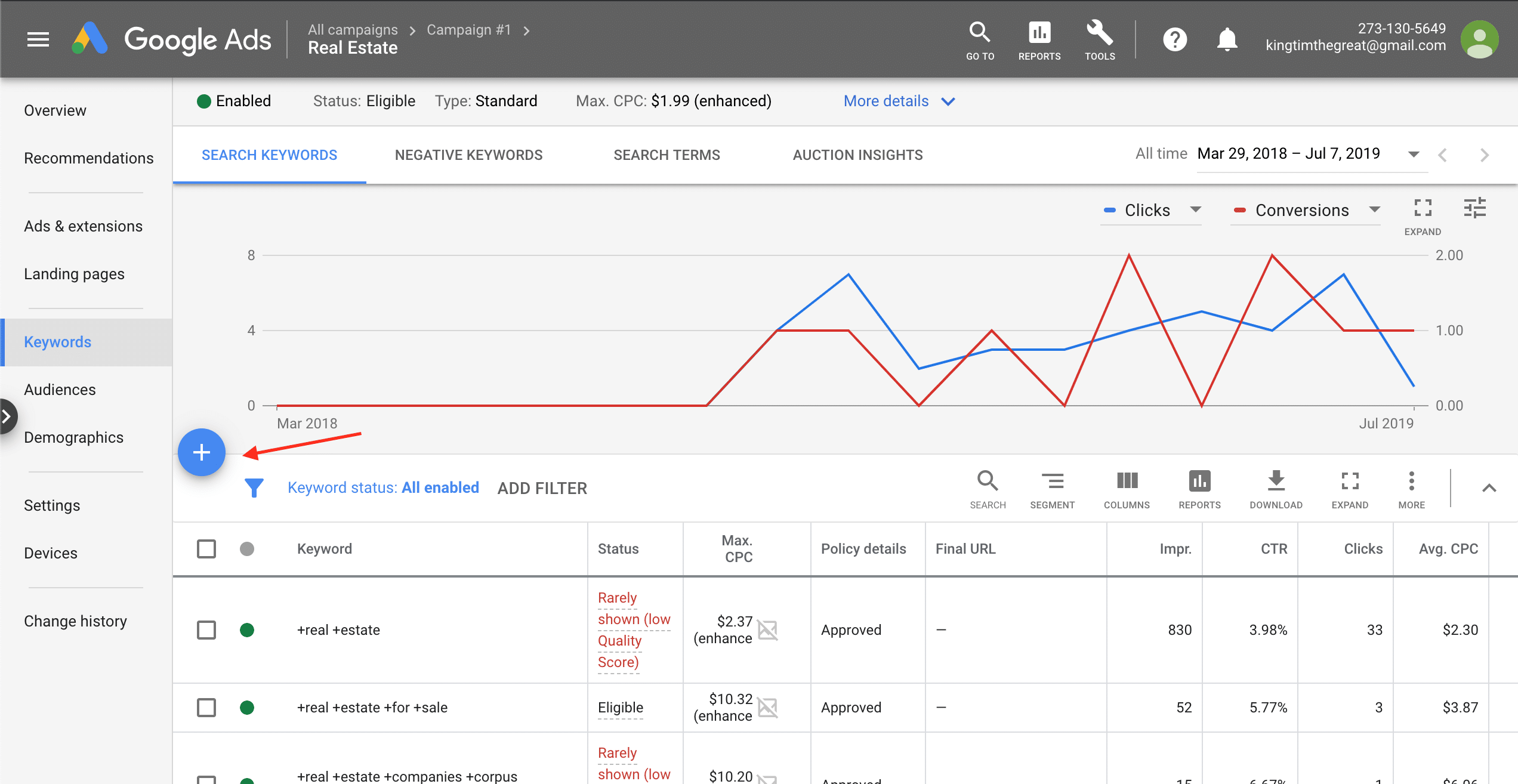
To start enter your Google Ads campaign and visit Keywords (in the left column). Click the Search Terms tab, and sort by Conversions or Clicks. Look for transactional keywords— product keywords + an intent term like “for sale.” Select them, and click Add as keyword in the blue prompt to save. Alternatively, save in bulk by clicking DOWNLOAD from the toolbar, and sort that spreadsheet by Conversions or Clicks. Next move chosen keywords to another tab, and add each by clicking the + button at the center-left of the Search Keywords tab. Add to keyword ad groups if you use them, and consider applying a keyword match type (broad match modifier or phrase match).
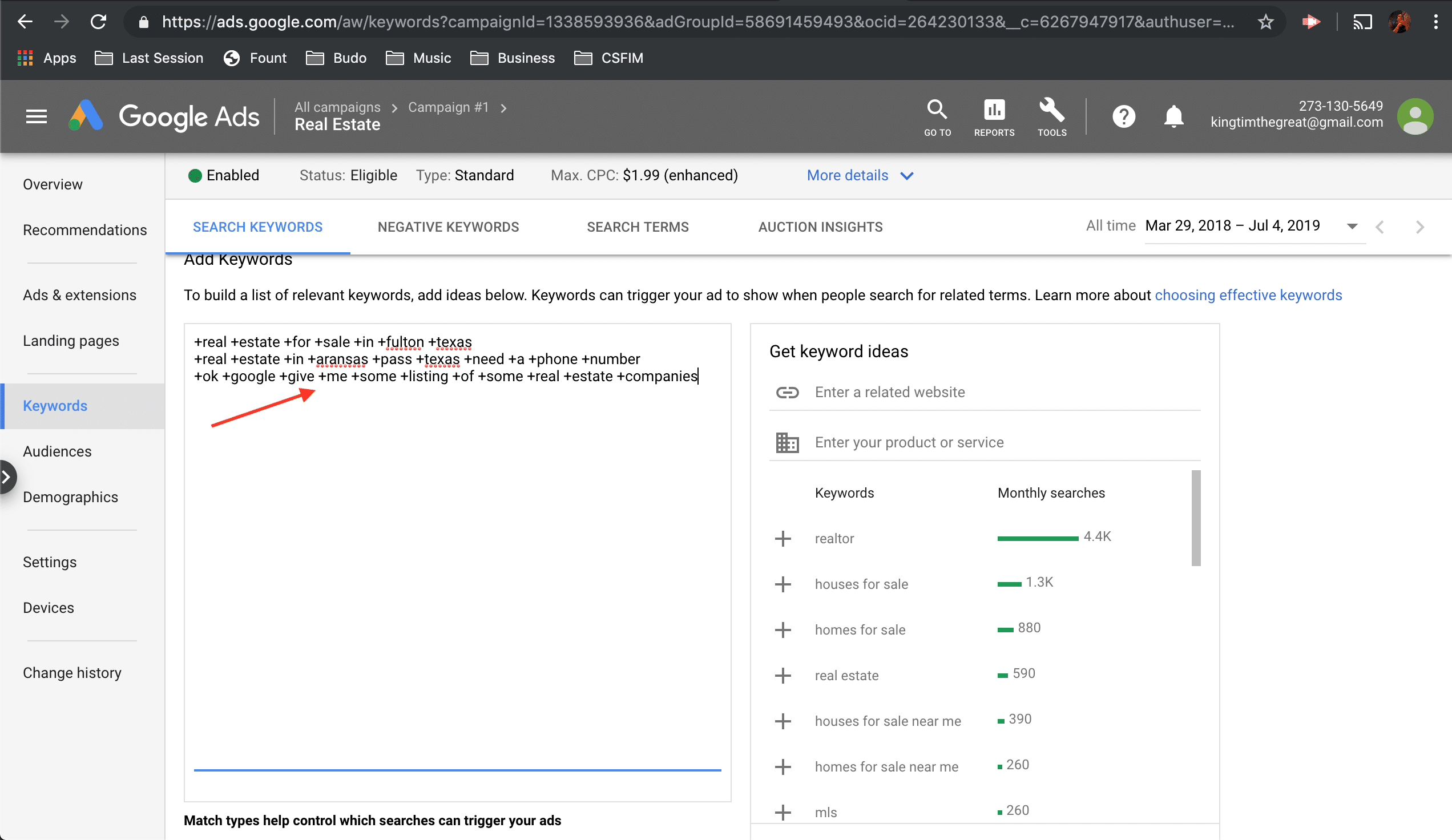
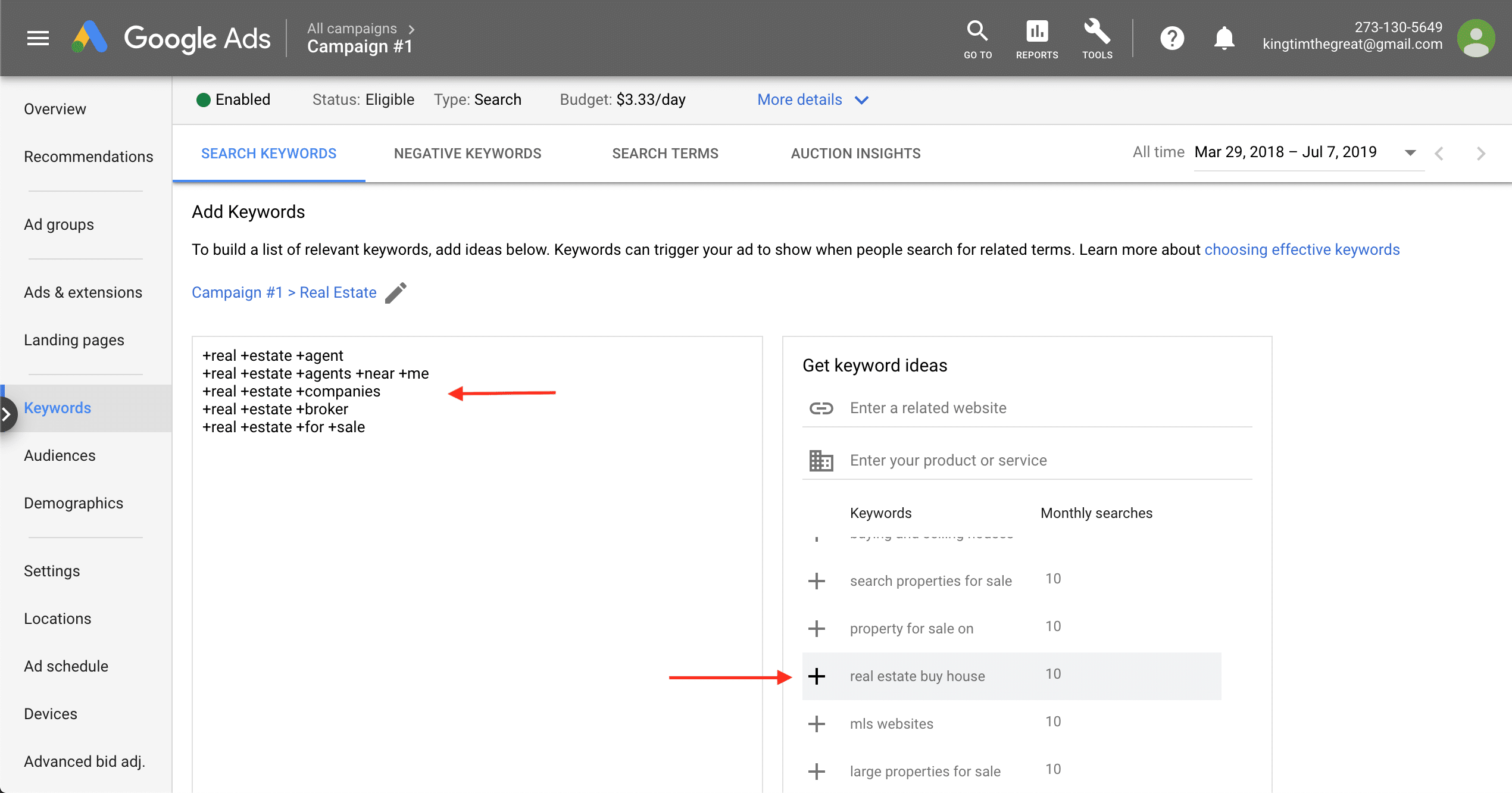
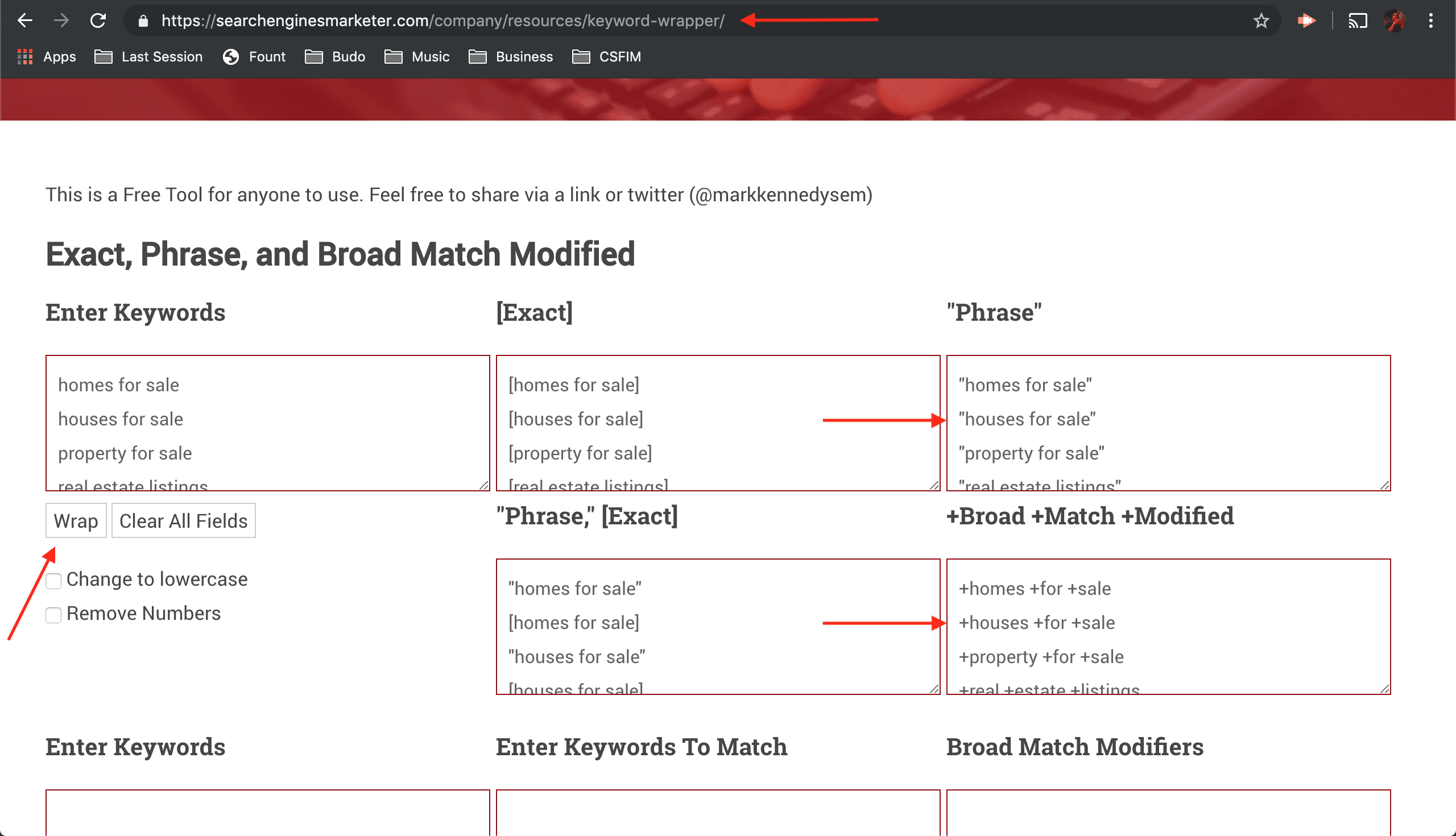
Second, discover new keywords in Google Ads. From inside your campaign, click Keywords in the left column. Next, click the blue plus sign in the center-left of the page. Look for transactional keywords for that ad group under Get keyword ideas (right). Add by pressing their plus signs, and apply a match type (broad match modifier or phrase match) manually or with this tool— fill the Enter Keywords field and click the Wrap button. Cut the results and fill (paste) the Add Keywords text field in Google Ads. Click Save to finish.
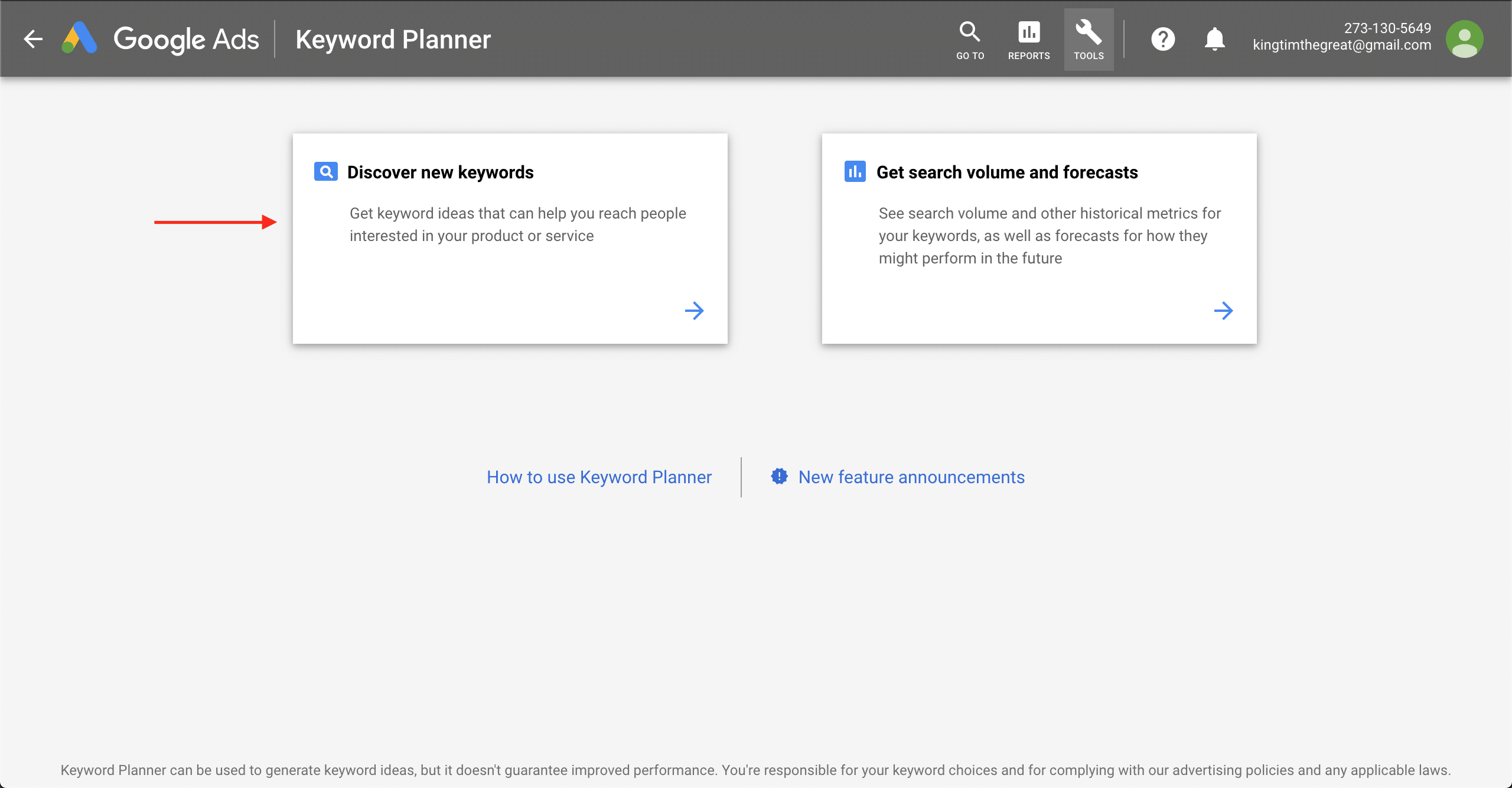
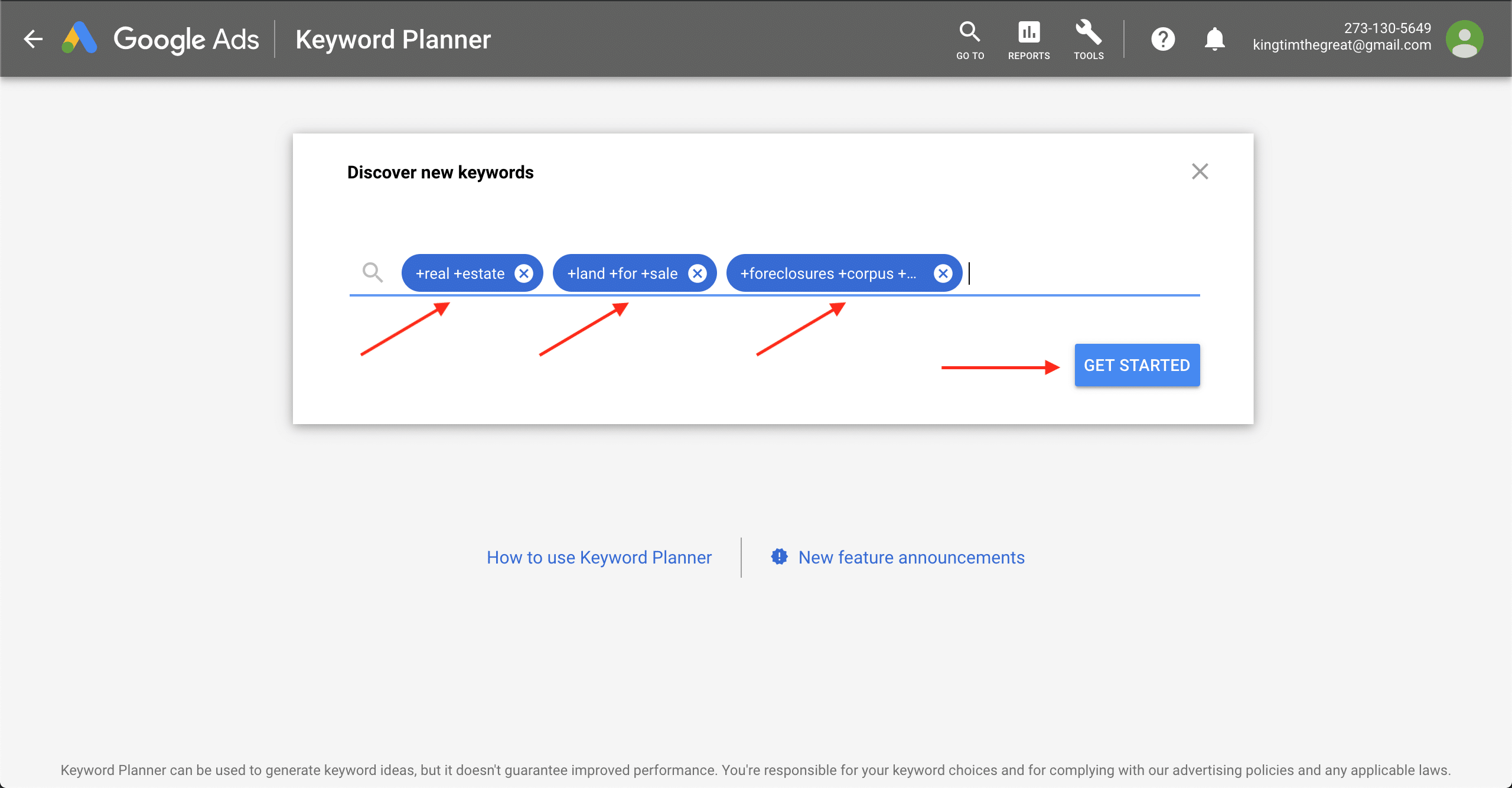
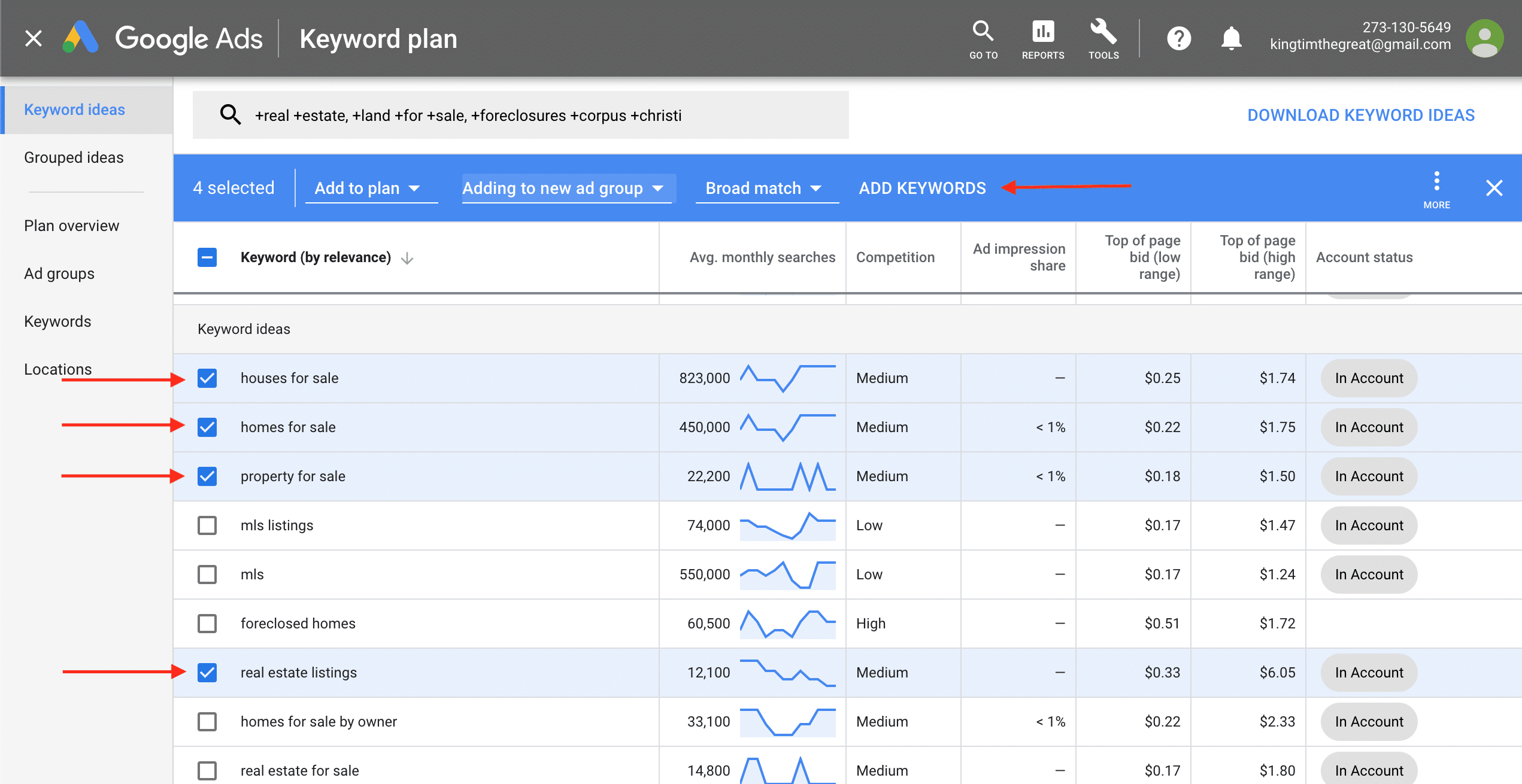
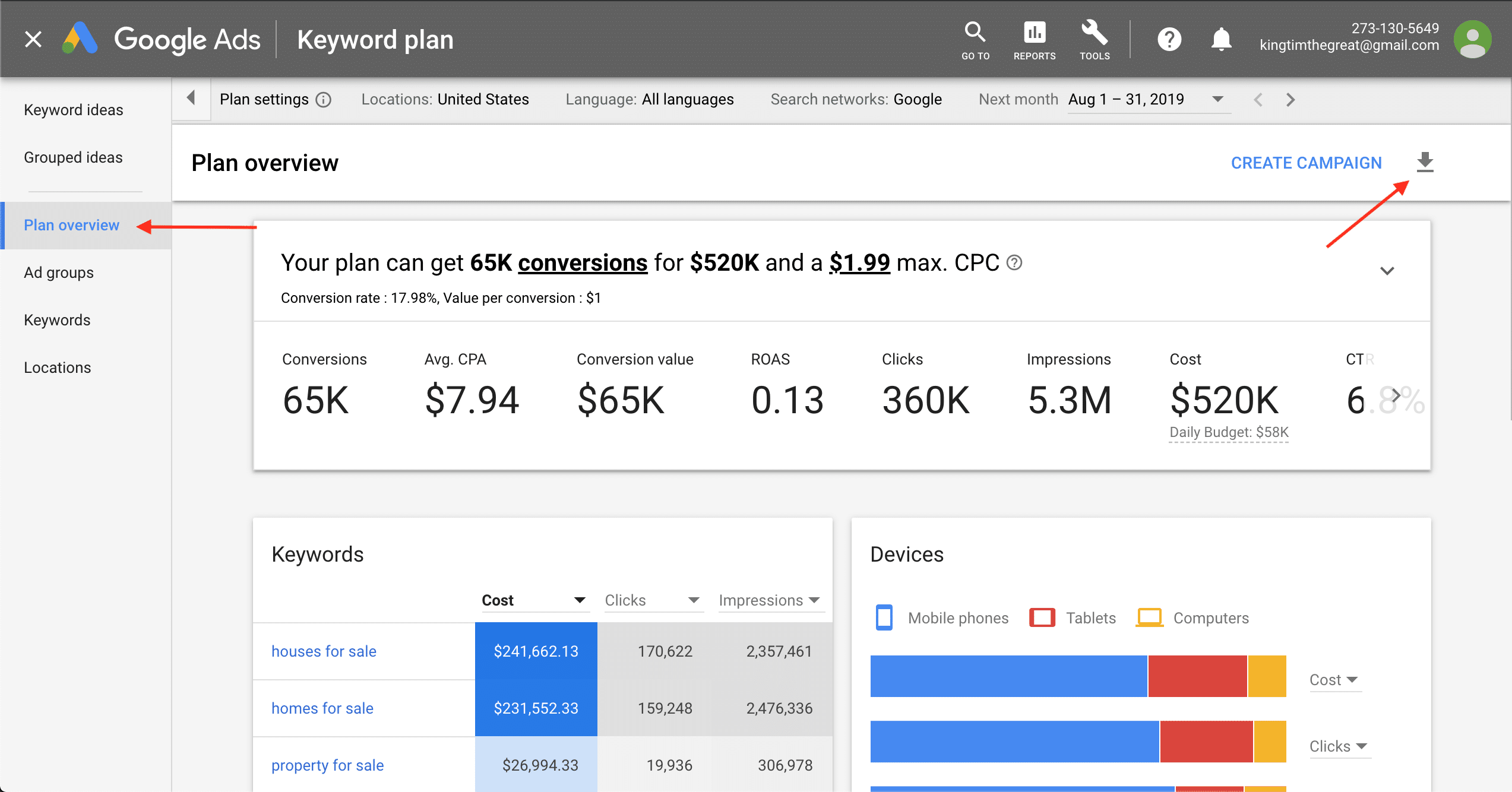
Third, use the Google Keyword Planner. Login from a new browser tab, and click Discover New Keywords. Enter ≤ 10 keyword ideas into the text field (e.g.: 10 active keywords with the most clicks), and press the Get Started button. In the results, skip past Keywords you provided to the Keyword ideas section. Here, select transactional keywords by clicking their checkbox to the left, ignoring any In Plan under the Account status column. From the blue toolbar that appears above the table, click Add Keywords on the right. Do this before changing pages, as toggling to the next page removes those selections.
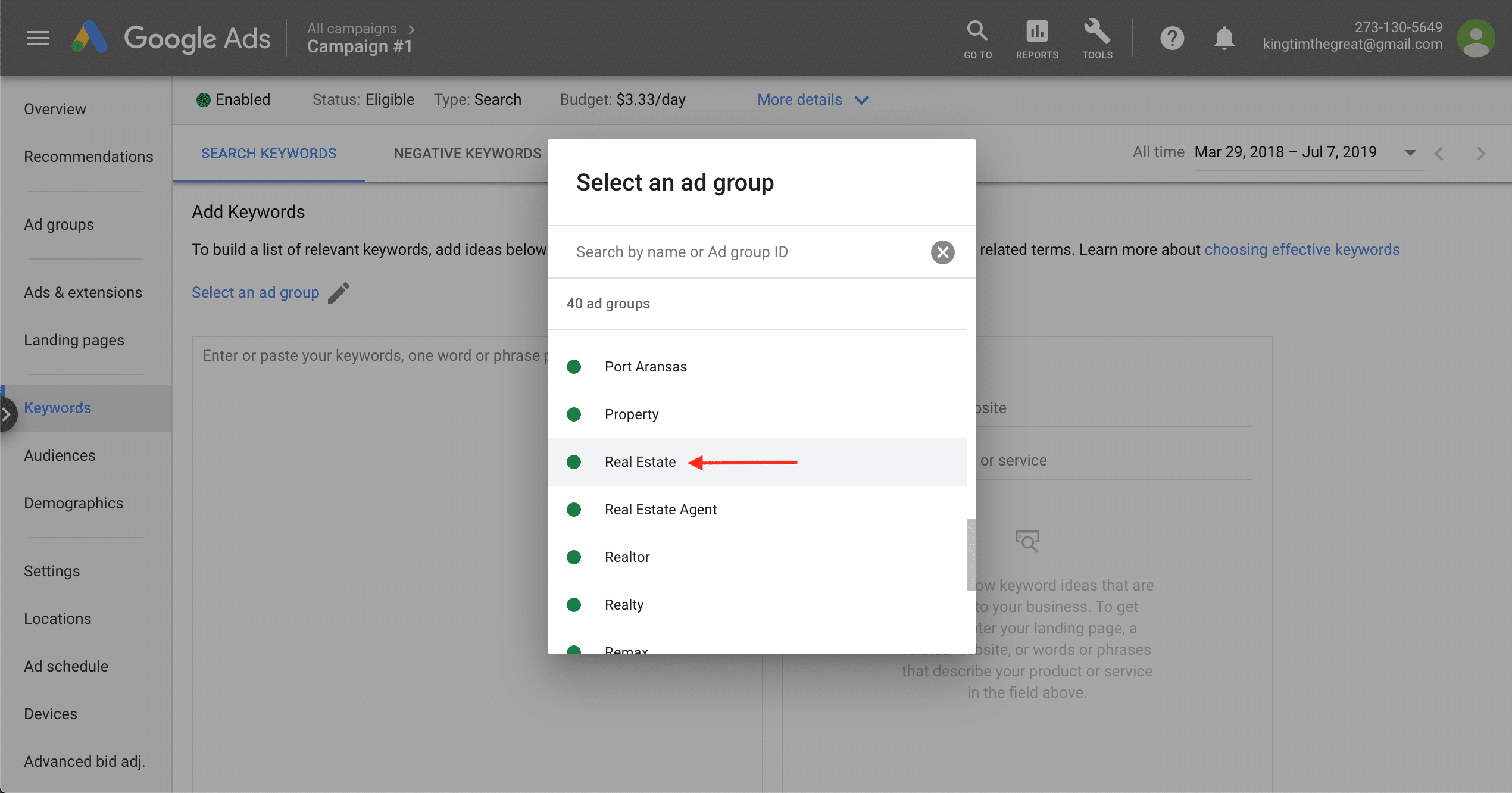
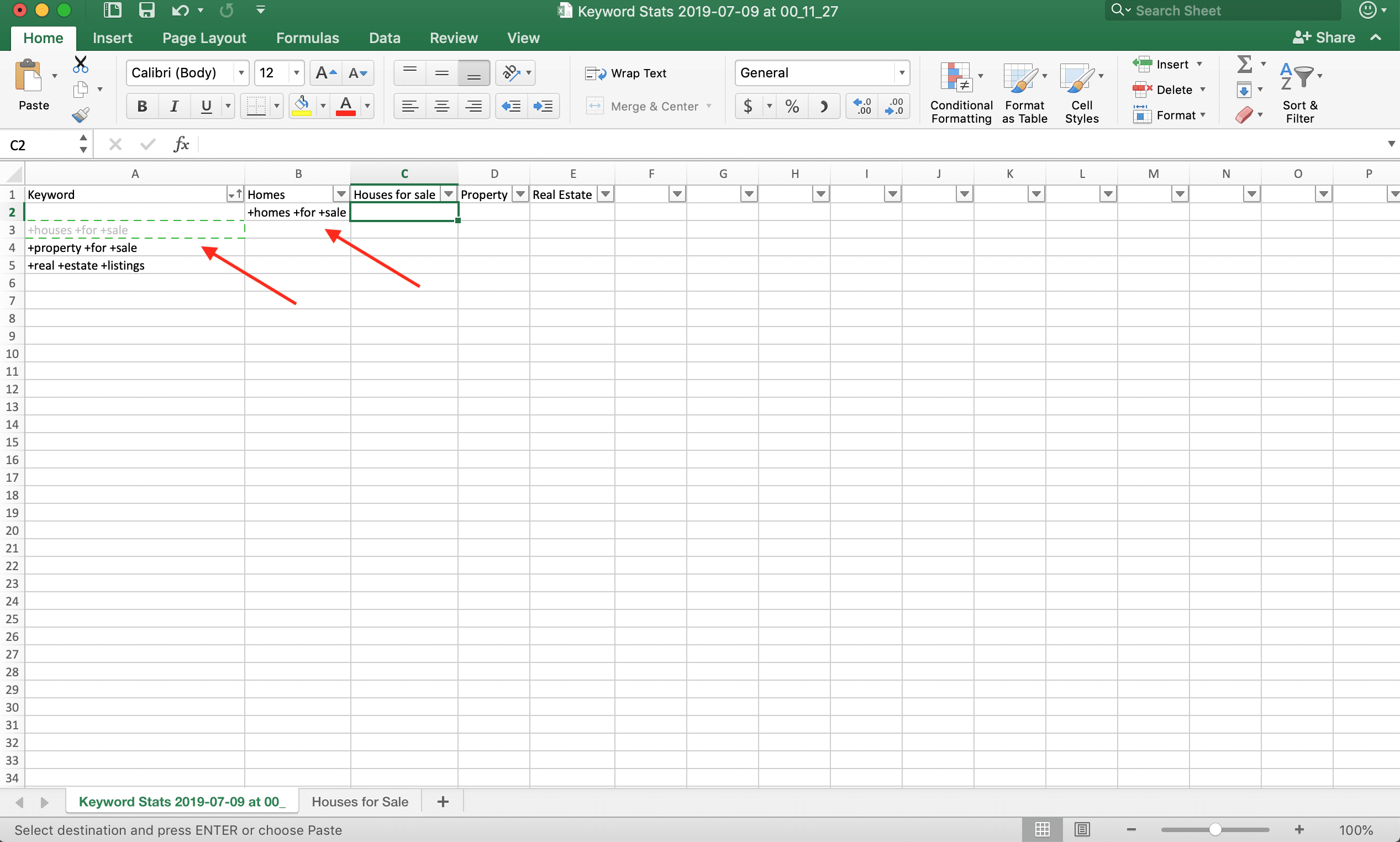
Once you’ve added enough (50% – 200% more) click Keywords in the left column. Click the download icon in the top right corner to download to excel. In that file, copy all keywords and use a tool to add match type in bulk. Categorize your list under keyword ad groups in excel if you’re using them. Once done, go back to Google Ads and click Ad Groups in the left column. Enter each ad group, click Keywords in the left column, and click the plus sign to the center-left of the page. Paste keywords into the text field, and click Save. Repeat this process until they’re all in the right ad group.
We won’t cover using 3rd party software because you won’t need it. These can help, but Google’s keyword planner should be all you need. These tools are used by experts, so we won’t explore their details here.
Keyword discovery has the biggest impact on new campaigns, going from few to many. It’s essential, so take time to learn it well. Successful keyword discovery pays dividends.